

 General


Agent One (08-24-2013),highLIGHTED (06-08-2010),mnpeepno2 (01-24-2011),Shadeyz346 (08-03-2010),swalpen (05-22-2015),Tunguestenio (03-27-2011),___x][GooD. (12-08-2010)
Results 1 to 15 of 15
-
06-05-2010 #1Upcoming MPGHiean



- Join Date
- Feb 2009
- Gender

- Location
- Posts
- 3,156
- Reputation
 49
49- Thanks
- 868
- My Mood
-


[TUT]How to make an Account Generator
Hopefully this tutorial explain step-by-step on how to make an account generator in decent detail.
For this tutorial I'll be using the Nexon Passport page.
First off make a form with a webbrowser named webbrowser1, and a module.
Step 1: Learning the HTML.
The first step to making an Account Generator is learning the basics of HTML and stuff.
I recommend checking out this masterful person's video:
That should explain the basics of how to use the Getelementbyid function in VB.NET.
So now knowing the basics of this function, let's put it to use.
Step 2: Inputboxes
First off I need to find the name of the first inputbox.
By looking at the page source of the Nexon passport page I discovered that the first inputbox is named "txtAccountId".
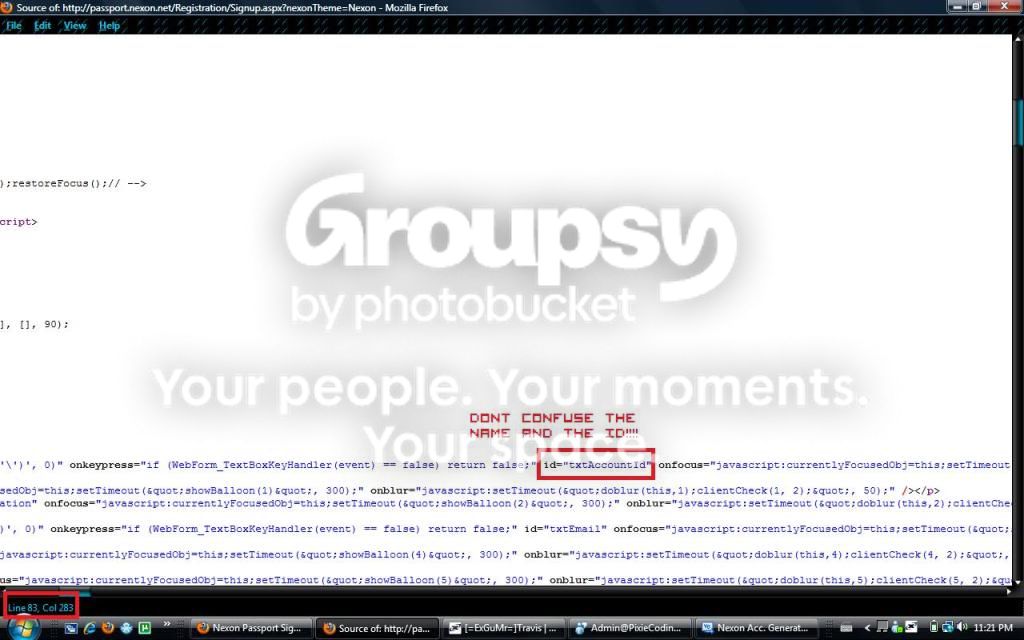
So in our module, I made this sub:
And I added a textbox (textbox1) to form1:Code:Public Sub fillinformation() Form1.WebBrowser1.Document.GetElementById("txtAccountId").SetAttribute("value", Form1.textbox1.Text) End Sub
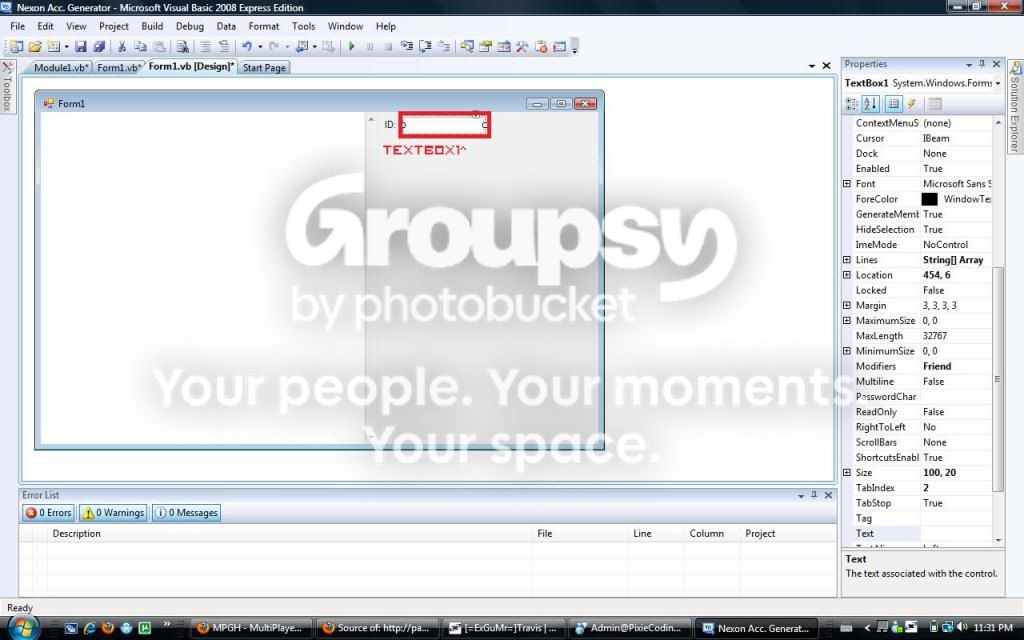
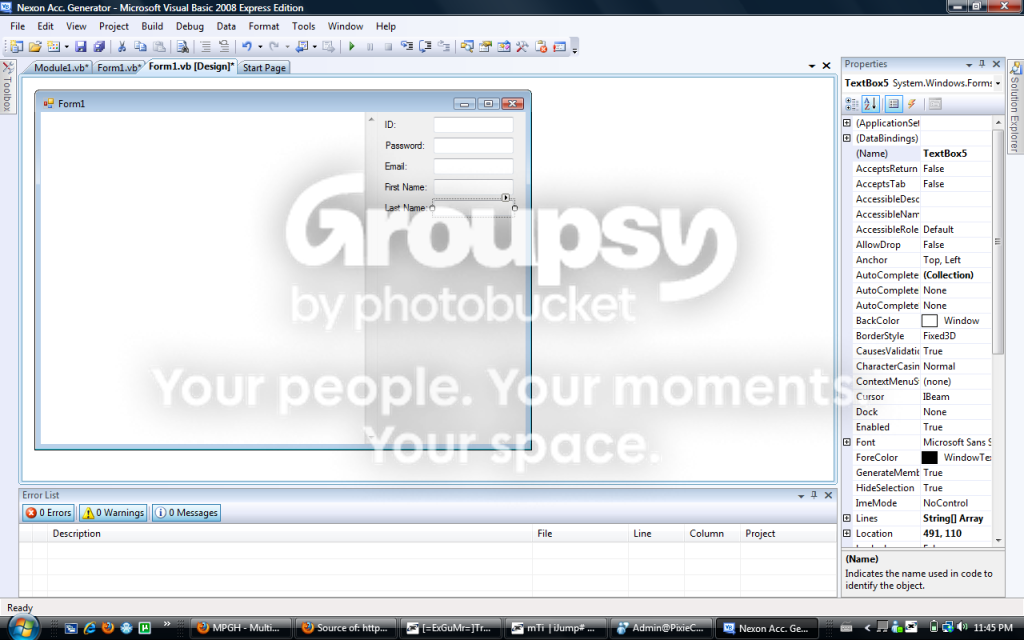
After that, I found the rest of the IDs and kept adding to my sub.
My code looked like this:
And my form looked like this:Code:Public Sub fillinformation() Form1.WebBrowser1.Document.GetElementById("txtAccountId").SetAttribute("value", Form1.TextBox1.Text) Form1.WebBrowser1.Document.GetElementById("pass").SetAttribute("value", Form1.TextBox2.Text) Form1.WebBrowser1.Document.GetElementById("passconfirmation").SetAttribute("value", Form1.TextBox2.Text) Form1.WebBrowser1.Document.GetElementById("email").SetAttribute("value", Form1.TextBox3.Text) Form1.WebBrowser1.Document.GetElementById("emailconfirm").SetAttribute("value", Form1.TextBox3.Text) Form1.WebBrowser1.Document.GetElementById("firstname").SetAttribute("value", Form1.TextBox4.Text) Form1.WebBrowser1.Document.GetElementById("lastname").SetAttribute("value", Form1.TextBox5.Text)
After that I moved into the dates and shit
Step 3: The com xes and shit.
This part uses the same principle: Look through the code and find the ID.
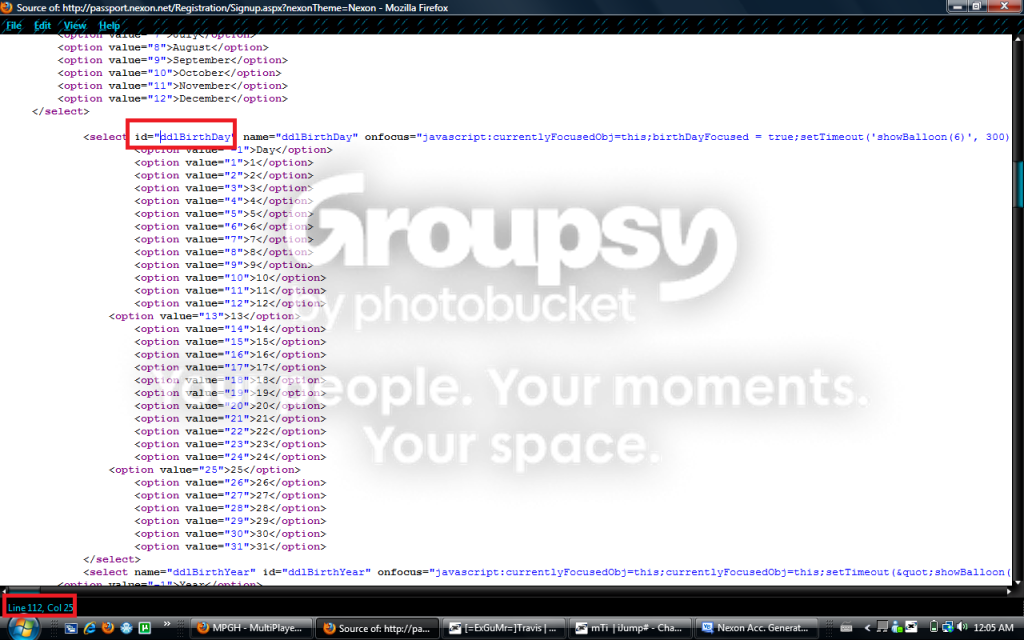
After finding the ID my code looked like this:
Code:Public Sub fillinformation() Form1.WebBrowser1.Document.GetElementById("txtAccountId").SetAttribute("value", Form1.TextBox1.Text) Form1.WebBrowser1.Document.GetElementById("pass").SetAttribute("value", Form1.TextBox2.Text) Form1.WebBrowser1.Document.GetElementById("passconfirmation").SetAttribute("value", Form1.TextBox2.Text) Form1.WebBrowser1.Document.GetElementById("email").SetAttribute("value", Form1.TextBox3.Text) Form1.WebBrowser1.Document.GetElementById("emailconfirm").SetAttribute("value", Form1.TextBox3.Text) Form1.WebBrowser1.Document.GetElementById("firstname").SetAttribute("value", Form1.TextBox4.Text) Form1.WebBrowser1.Document.GetElementById("lastname").SetAttribute("value", Form1.TextBox5.Text) Form1.WebBrowser1.Document.GetElementById("month").SetAttribute("value", Form1.ComboBox2.Text) Form1.WebBrowser1.Document.GetElementById("day").SetAttribute("value", Form1.ComboBox1.Text) Form1.WebBrowser1.Document.GetElementById("year").SetAttribute("value", Form1.TextBox6.Text) End Sub
Step 4:Radiobuttons
For radiobuttons, you invoke a click, so for the gender I just set it as default male, and invoked a click.
I added this to my code:
Step 5: Captcha.Code:Form1.WebBrowser1.Document.GetElementById("male").InvokeMember("click")
HARDEST PART EVUR.
There are different methods towards this.
For this tutorial we'll use Calebb's.
Nextgen1's method is good too, but mine is about 25 lines of code and a bit less efficient.
So add this sub to your module:
As well as a Picturebox, a textbox and a button to load the captcha.Code:Public Sub getcaptcha() Dim capurl As String Dim inner1 As String = Form1.WebBrowser1.Document.Body.InnerHtml Dim inner As String = inner1 Dim findStart As String, pulledOut As String findStart = "properties=" Dim start As Integer, [end] As Integer start = inner.IndexOf(findStart) inner = inner.Remove(0, start + findStart.Length) [end] = inner.IndexOf("""") inner = inner.Remove([end], inner.Length - [end]) pulledOut = inner capurl = "" capurl = ("https://passport.nexon.net/Registration/FormShieldHttpHandler.aspx?__formShieldID=captchaF S&generate=image&properties=") & pulledOut Form1.PictureBox1.ImageLocation = capurl Form1.Picturebox1.Show() End Sub
Don't forget to add:
To your fillinformation sub.Code:Form1.WebBrowser1.Document.GetElementById("captchatextbox").SetAttribute("value", Form1.TextBox7.Text)
My form then looked like this:
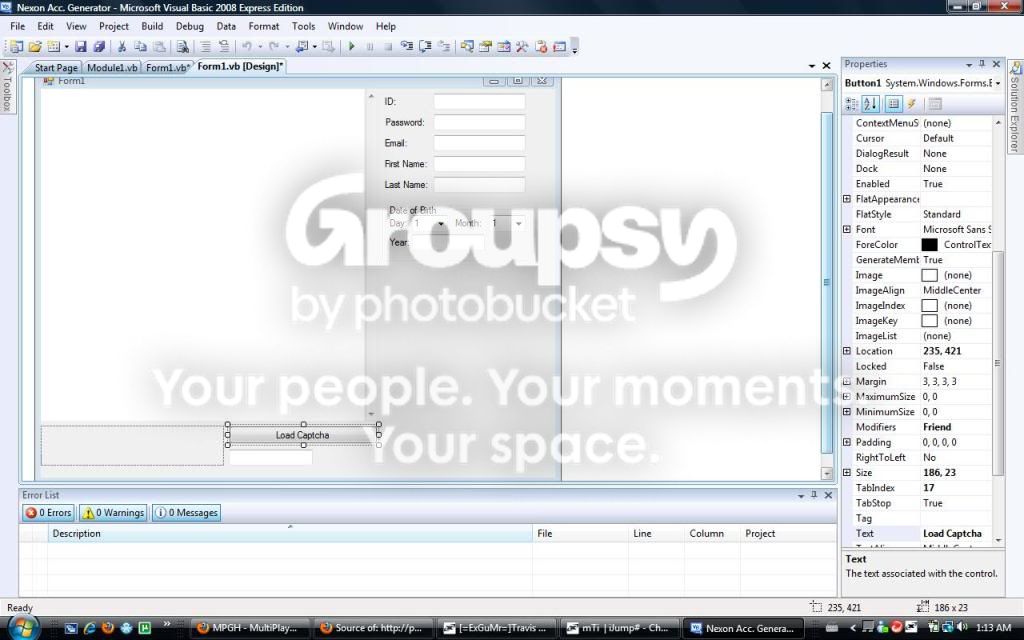
Step 6: Final Touches and Making the Fill button.
All you have left is to check and un-check some things, and click the button.
That code is this:
Code:Form1.WebBrowser1.Document.GetElementById("termsofuse").InvokeMember("click") Form1.WebBrowser1.Document.GetElementById("submit").InvokeMember("click")
You're done!
Don't forget to add more features to yours, such as random information, or a better GUI!
-
The Following 7 Users Say Thank You to Lolland For This Useful Post:
-
06-05-2010 #2Banned


- Join Date
- Feb 2010
- Gender
- Posts
- 721
- Reputation
- 7
- Thanks
- 148
- My Mood
-


Nice tutorial

This is usefull for beginners to learn how to use html in visual basic
-
The Following User Says Thank You to qddW$#%^jtyjtyj For This Useful Post:
Lolland (06-06-2010)
-
06-05-2010 #3MPGH Champion


- Join Date
- Sep 2009
- Gender
- Location
- Posts
- 5,915
- Reputation
- 161
- Thanks
- 3,109

https://www.mpgh.net/forum/33-visual-...-checkbox.html
Further tip:
If you can't find the ID ffs simply use Tab.
Tab until you reach the button and hit enter.
Or focus on a textbox before and then hit tab and then enter.
webbrowser1.document.getelementbyid("id").focus
Sendkeys.Send({TAB})
Sendkeys.Send({TAB})
Sendkeys.Send({ENTER})
-
06-05-2010 #4MPGH God IV

- Join Date
- May 2009
- Gender
- Location
- Posts
- 8,552
- Reputation
- 127
- Thanks
- 5,971
- My Mood
-

 Sendkeys is for choobs
 Originally Posted by Blubb1337


GetElementbyid ftw
Nice tutorial-Rest in peace leechers-
Your PM box is 100% full.
-
The Following User Says Thank You to Zoom For This Useful Post:
Lolland (06-06-2010)
-
06-05-2010 #5


- Join Date
- May 2010
- Gender
- Location
- Posts
- 4,764
- Reputation
- 495
- Thanks
- 2,139
- My Mood
-


SendKeys and GetElementByID both have their own value. When GetElement method fails, Sendkeys comes in. But Sendkeys is really faulty method as the control can lost focus at any second.

-
The Following User Says Thank You to Hassan For This Useful Post:
Lolland (06-06-2010)
-
06-05-2010 #6MPGH Champion
- Join Date
- Sep 2009
- Gender
- Location
- Posts
- 5,915
- Reputation
- 161
- Thanks
- 3,109
Yea getelementbyid is especially useful when the names of the elements are hidden...Duh! Originally Posted by hejsan
-
06-05-2010 #7Dual-Keyboard Member

- Join Date
- Dec 2008
- Gender
- Posts
- 324
- Reputation
- 12
- Thanks
- 107

lolland get firebug it makes it ALOT easier to do this it takes me like 5 minutes or less to make an acc gen with captcha and all that.

Edit:
gratz on minion budd-eLast edited by trevor206; 06-06-2010 at 12:30 AM.
-
The Following User Says Thank You to trevor206 For This Useful Post:
Lolland (06-06-2010)
-
06-06-2010 #8Bobo's Trainer

- Join Date
- Dec 2009
- Gender
- Posts
- 790
- Reputation
- 9
- Thanks
- 160
- My Mood
-


Dang it, now everyone and there brother will have account generators! Anyway, nice tutorial, i already made my own though.
-
The Following User Says Thank You to MugNuf For This Useful Post:
Lolland (06-06-2010)
-
06-06-2010 #9
ThreadstarterUpcoming MPGHiean
- Join Date
- Feb 2009
- Gender
- Location
- Posts
- 3,156
- Reputation
- 49
- Thanks
- 868
- My Mood
-
I made my first account generator like that, and I handed it in to my teacher along with the code, and he wasn't impressed Originally Posted by Blubb1337

He said doing it that way was like building a robot to press keys when making a spammer, instead of making a simple program.
-
06-06-2010 #10MPGH Champion
- Join Date
- Sep 2009
- Gender
- Location
- Posts
- 5,915
- Reputation
- 161
- Thanks
- 3,109
Well duh, if the name is hidden idk how to do it. If not, which is usually the case, one sure uses getelementbyid.
-
06-06-2010 #11Banned
- Join Date
- Jun 2010
- Gender
- Posts
- 465
- Reputation
- 17
- Thanks
- 514
Now Quick Everyone Go Make One And Say Its Yours
Nice Tut.
Already made one ^_^
-
The Following User Says Thank You to GameTrainerMaker For This Useful Post:
Lolland (06-06-2010)
-
06-06-2010 #12


- Join Date
- Feb 2010
- Gender
- Location
- Posts
- 1,690
- Reputation
- 13
- Thanks
- 246
- My Mood
-

Lol, Very nice tut indeed. I was actually looking on google the other day for this :P

Originally Posted by m_t_h

-
The Following User Says Thank You to MvRouC12 For This Useful Post:
Lolland (06-06-2010)
-
06-06-2010 #13Choob
- Join Date
- Apr 2010
- Gender
- Posts
- 35
- Reputation
- 10
- Thanks
- 1
- My Mood
-


Can you please help me?
For the final stage of the creation I'm doing this for the "DONE" button
[php]
Form1.WebBrowser1.Document.GetElementById("btnSubm it").InvokeMember("click")
[/php]
Only thing is it doesn't work. All it does is refresh the captcha in my webbrowser.
-
06-06-2010 #14MPGH Champion
- Join Date
- Sep 2009
- Gender
- Location
- Posts
- 5,915
- Reputation
- 161
- Thanks
- 3,109
Try WebBrowser1.Document.Forms(0).InvokeMember("submit ")
By the way, that video tutorial is just pointless
-
07-01-2010 #15
ThreadstarterUpcoming MPGHiean
- Join Date
- Feb 2009
- Gender
- Location
- Posts
- 3,156
- Reputation
- 49
- Thanks
- 868
- My Mood
-
No bumping old threads.

Similar Threads
-
[Tutorial] a Tut on how to make an account on Paypal in the forbidden Country
By abdoabdo123 in forum CrossFire TutorialsReplies: 6Last Post: 06-12-2011, 04:08 PM -
[TUT]How to make a chinese account
By Joshcarr2006 in forum CrossFire Hacks & CheatsReplies: 51Last Post: 10-03-2009, 07:08 PM -
[Tut]How to Make KoWarrock Account Easy
By EyalZamir in forum WarRock Korea HacksReplies: 181Last Post: 06-08-2008, 12:05 PM -
[Request]Tut how to make his own bypass
By BurakG in forum WarRock - International HacksReplies: 3Last Post: 05-08-2007, 02:46 PM -
Tut: how to make cheese
By ace76543 in forum GeneralReplies: 14Last Post: 01-14-2007, 09:39 AM