[AS3] Custom Client-Sided Dynamic Music
Custom Client-Sided Dynamic Music
I know someone will mention it, yes, the music is stored in the server. If that really hurts that much than you can just as easily store it in the client.
I'll try to help as much people as possible, be sure to leave a reply if you have a problem / if you don't understand a step.
I know someone will mention it, yes, the music is stored in the server. If that really hurts that much than you can just as easily store it in the client.
Tutorial
1. Music.as
Replace your Music.as file with this one:
You can also remove the load function and all places that it gets called from if you wish (and know how to).
2. SwitchMusic.as
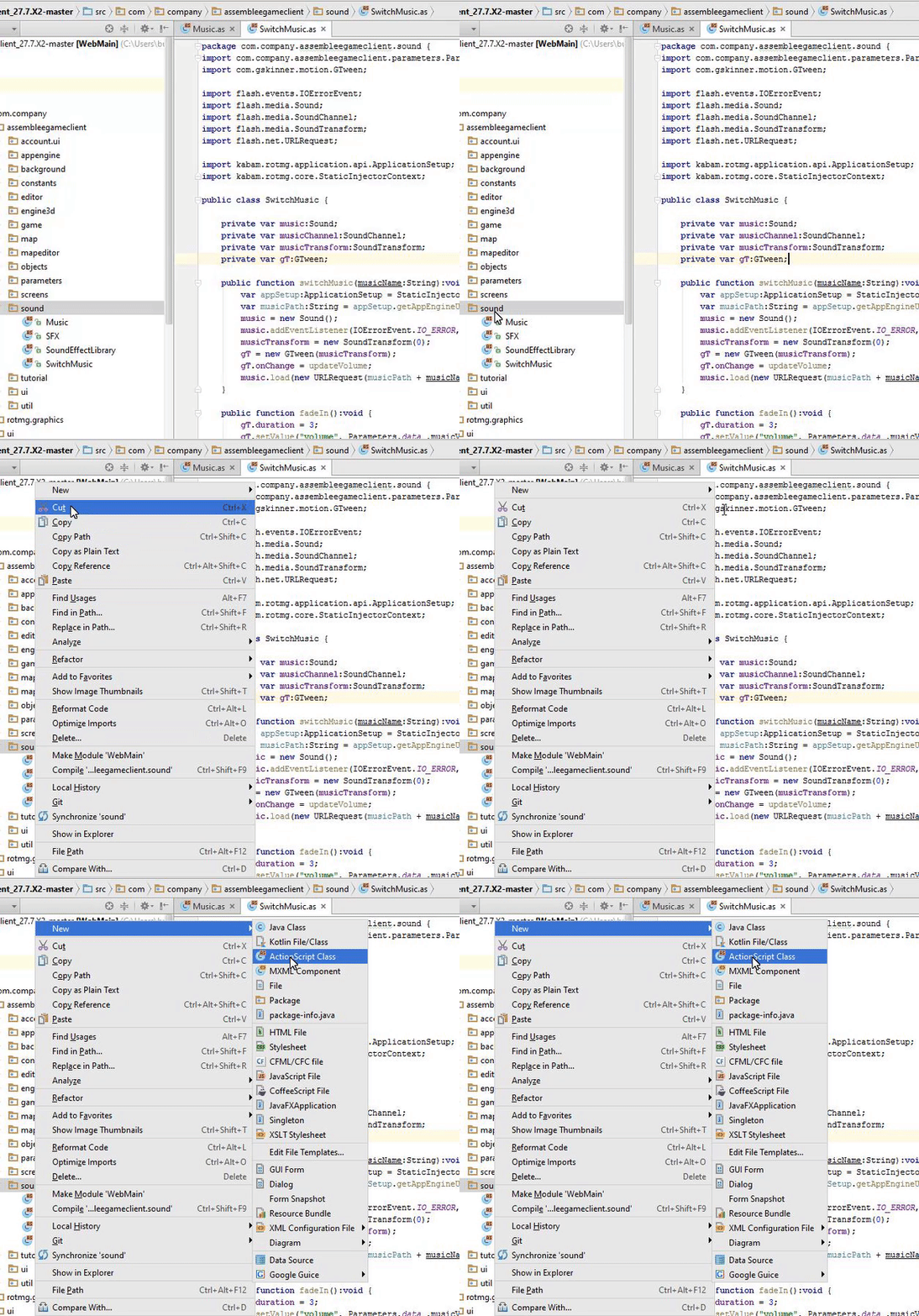
Create a new file in the sound folder (same folder as your Music.as file) called SwitchMusic.
Replace the code in the newly created file with this one:
Follow this image to fix the '****' symbols.
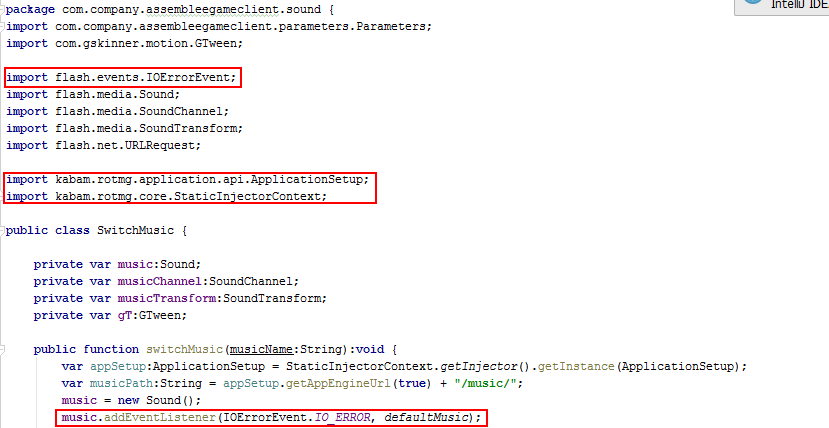
You now have all your basic functions to switch your music! If you wish to change the fade in / fade out time then go in the fadeIn function and change the gT.duration number to equal whatever number you'd like. You should also change the defaultMusic function and change the "default" text to whatever name your default music has (basicly the music you want to use in case a dungeon doesn't have a music). In my case, my default music is named to 'default' and so I put in the name "default".
3. Use new functions
Go to the onMapLoaded function in MapLoadingMediator.as and change it to this:
You will also need to import Music.as
(go to the imports at the top and add this line:
)
Next go in TitleView.as and at the very beginning of the TitleView function add this line:
Be sure to put in your actual menu music's name (mine is called 'menu' so I put in 'menu').
Import Music.as again aswell.
Next go in CharacterSelectionAndNewsScreen.as and in the CharacterSelectionAndNewsScreen function add the same line (with the same music aswell unless you want a different one).
Lastly go in GameServerConnectionConcrete.as and in the onDeath function add the same line but change the music to your death screen music.
4. Add music!
You are now at the step in which you need to find music. Go in your server and find the music folder (server>sfx>music). Now properly add music to the music folder!
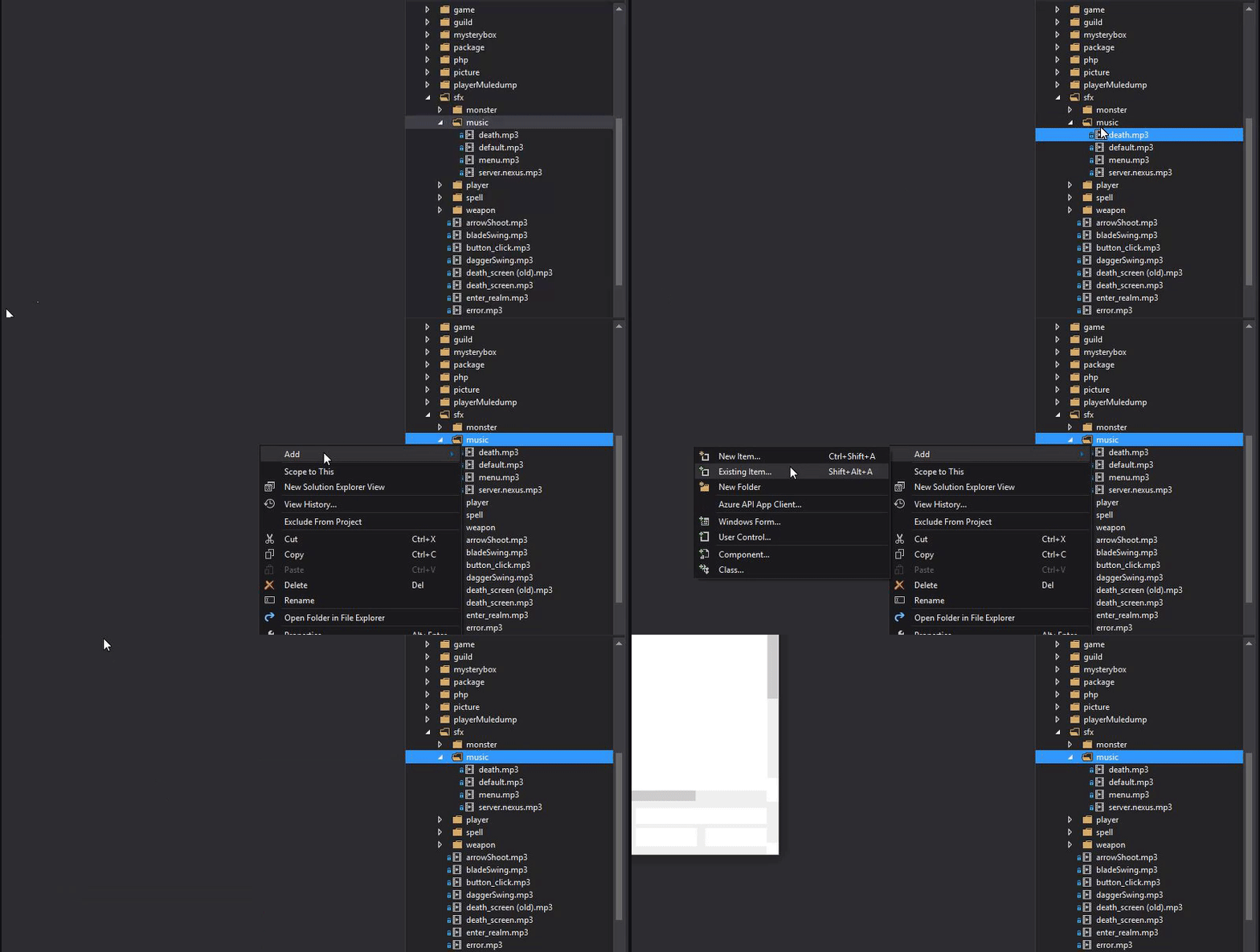
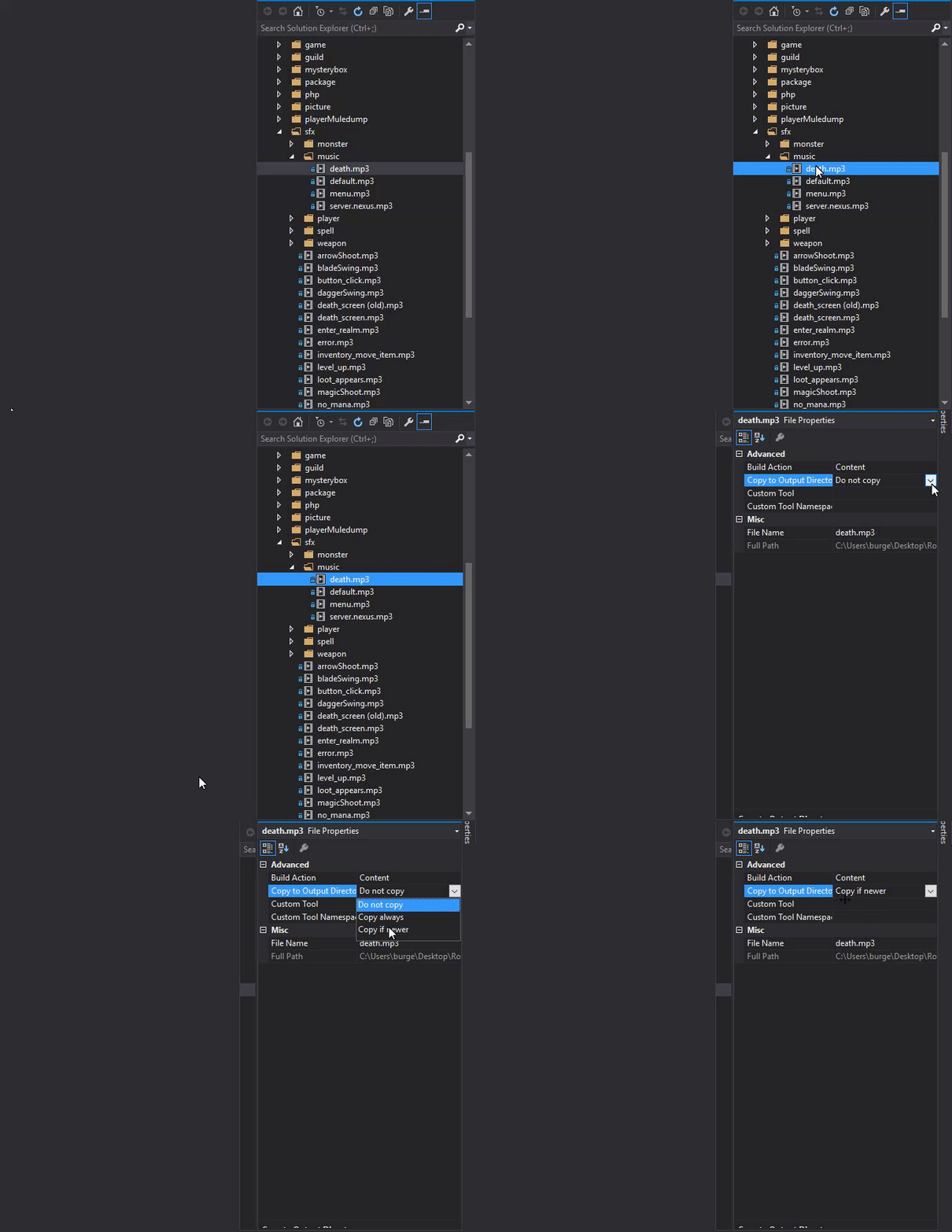
Be sure to add a song named 'menu' (or whatever you put your menu music's name as), one name 'death' (or whatever you put your death music's name as) and one named 'default' (or whatever you put your default music's name as).
Whenever you want to add music for a dungeon, add the music you want. Next go to wServer>realm>worlds and find the dungeon you want specific music for. Open the file and find the line which says: ClientWorldName = "dungeonname". Copy that name and rename your music file to that name.
If your dungeon name has '{}' surrounding it just remove them and copy that name over.
Replace your Music.as file with this one:
Code:
package com.company.assembleegameclient.sound {
import com.company.assembleegameclient.parameters.Parameters;

public class Music {

    private static var originalMusic:String;
    private static var music_:SwitchMusic;

    public static function load():void {
    }

    public static function chooseMusic(music:String):void {
        if (originalMusic == music) return;
        originalMusic = music;
        if (music_) {
            music_.fadeOut();
        }
        music_ = new SwitchMusic();
        music_.switchMusic(music);
        music_.fadeIn();
    }

    public static function setPlayMusic(_arg_1:Boolean):void {
        Parameters.data_.playMusic = _arg_1;
        Parameters.save();

    }

    public static function setMusicVolume(_arg_1:Number):void {
        Parameters.data_.musicVolume = _arg_1;
        Parameters.save();
        if (!Parameters.data_.playMusic) {
            return;
        }
        music_.changeVolume(_arg_1);
    }


}
}//package com.company.assembleegameclient.sound
2. SwitchMusic.as
Create a new file in the sound folder (same folder as your Music.as file) called SwitchMusic.
How to create a new file
Replace the code in the newly created file with this one:
Code:
package com.company.assembleegameclient.sound {
import com.company.assembleegameclient.parameters.Parameters;
import com.gskinner.motion.GTween;

import flash.events****ErrorEvent;
import flash.media.Sound;
import flash.media.SoundChannel;
import flash.media.SoundTransform;
import flash.net.URLRequest;

import kabam****tmg.application.api.ApplicationSetup;
import kabam****tmg.core.StaticInjectorContext;

public class SwitchMusic {

    private var music:Sound;
    private var musicChannel:SoundChannel;
    private var musicTransform:SoundTransform;
    private var gT:GTween;

    public function switchMusic(musicName:String):void {
        var appSetup:ApplicationSetup = StaticInjectorContext.getInjector().getInstance(ApplicationSetup);
        var musicPath:String = appSetup.getAppEngineUrl(true) + "/music/";
        music = new Sound();
        music.addEventListener(IOErrorEvent****_ERROR, defaultMusic);
        musicTransform = new SoundTransform(0);
        gT = new GTween(musicTransform);
        gT.onChange = updateVolume;
        music.load(new URLRequest(musicPath + musicName + ".mp3"));
    }

    public function fadeIn():void {
        gT.duration = 3;
        gT.setValue("volume", Parameters.data_.musicVolume);
        musicChannel = music.play(0, int.MAX_VALUE, musicTransform)
    }

    public function fadeOut():void {
        gT.onComplete = stopChannel;
        gT.setValue("volume", 0)
    }

    public function changeVolume(volume:Number):void {
        musicTransform.volume = volume;
        musicChannel.soundTransform = musicTransform;
    }

    private function updateVolume(gtween:GTween):void {
        musicChannel.soundTransform = musicTransform;
    }

    private function stopChannel(gtween:GTween):void {
        musicChannel.stop();
    }

    private static function defaultMusic(_arg_1:IOErrorEvent):void {
        Music.chooseMusic("default");
    }


}
}
Image
You now have all your basic functions to switch your music! If you wish to change the fade in / fade out time then go in the fadeIn function and change the gT.duration number to equal whatever number you'd like. You should also change the defaultMusic function and change the "default" text to whatever name your default music has (basicly the music you want to use in case a dungeon doesn't have a music). In my case, my default music is named to 'default' and so I put in the name "default".
3. Use new functions
Go to the onMapLoaded function in MapLoadingMediator.as and change it to this:
Code:
    private function onMapLoaded(_arg_1:MapInfo):void {
        this.view.showMap(_arg_1.displayName_, _arg_1.difficulty_);
        Music.chooseMusic(_arg_1.displayName_);
    }
(go to the imports at the top and add this line:
Code:
import com.company.assembleegameclient.sound.Music;
Next go in TitleView.as and at the very beginning of the TitleView function add this line:
Code:
Music.chooseMusic("menu");
Import Music.as again aswell.
Next go in CharacterSelectionAndNewsScreen.as and in the CharacterSelectionAndNewsScreen function add the same line (with the same music aswell unless you want a different one).
Lastly go in GameServerConnectionConcrete.as and in the onDeath function add the same line but change the music to your death screen music.
4. Add music!
You are now at the step in which you need to find music. Go in your server and find the music folder (server>sfx>music). Now properly add music to the music folder!
How to add music properly
1.
2.
Be sure to add a song named 'menu' (or whatever you put your menu music's name as), one name 'death' (or whatever you put your death music's name as) and one named 'default' (or whatever you put your default music's name as).
Whenever you want to add music for a dungeon, add the music you want. Next go to wServer>realm>worlds and find the dungeon you want specific music for. Open the file and find the line which says: ClientWorldName = "dungeonname". Copy that name and rename your music file to that name.
If your dungeon name has '{}' surrounding it just remove them and copy that name over.
I'll try to help as much people as possible, be sure to leave a reply if you have a problem / if you don't understand a step.

 Originally Posted by ZeusAlmighty

