How to set up VMware
How to set up VMware.
First off you'll need a couple things:- A Copy of VMware Workstation 7
- An ISO File of a Window's XP Operating System
- A decent computer.
- Common sense, many of you don't know, but a large percentage of MPGH lacks this.
Installing VMWare onto your computer.
- Go ahead and open vmware-workstation-full 7.0.0
- You'll go through a series of loading bars, but avast a setup wizard will open.
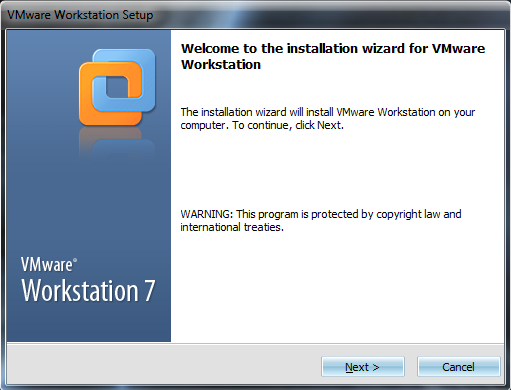
- You may read the information, however it is not required, and you will need to click next, in order to get to this page.

- At this point you will need to click Typical to continue to the next page.
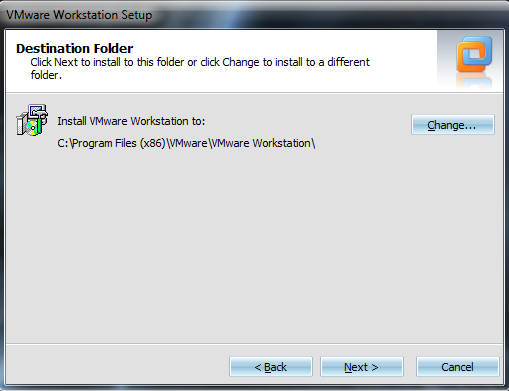
- On this page you are able to pick which location you wish to install VMWare, however I left my at the default, you will need to click next to continue.
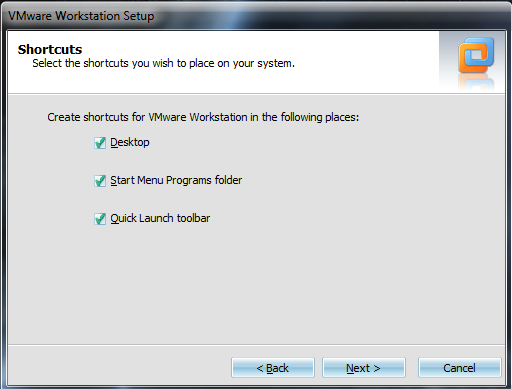
- On this page you will be able to decide which shortcuts you wish for the program to install. I unticked both the Start Menu and the Quick Launch shortcuts, click Next to continue.
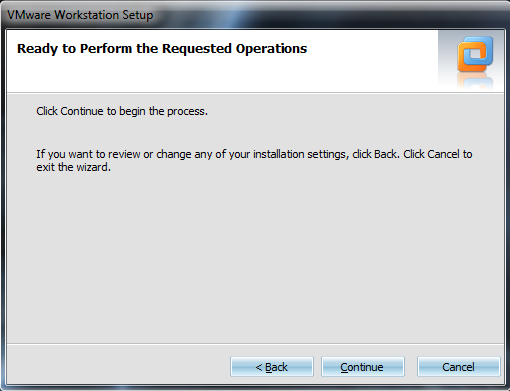
- On this page you are asked if you would like to go back and make any changed, if not, simply click continue.
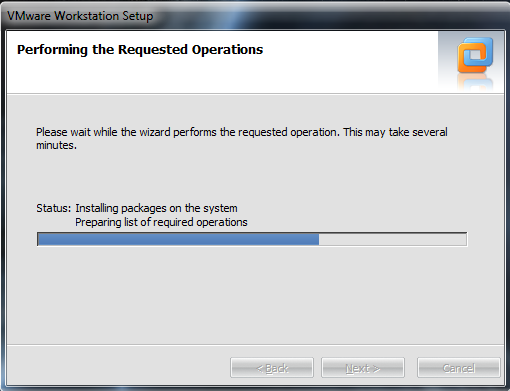
- You will again go through a series of loading bars, for VMWare to install, once it's done you will see this page.
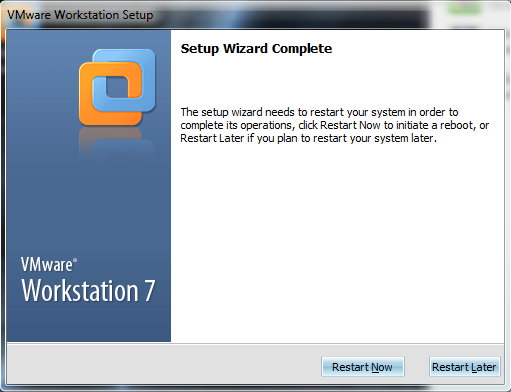
- Once you have reached this page, you will need to restart your computer in order to continue to setup the VMWare.

- After you have restarted, this icon should now be on your desktop, and you will be able to continue to the setup.
- Opening and setting up/creating a new Virtual Machine on VMWare.
- Go ahead and open VMWare Workstation from your desktop.
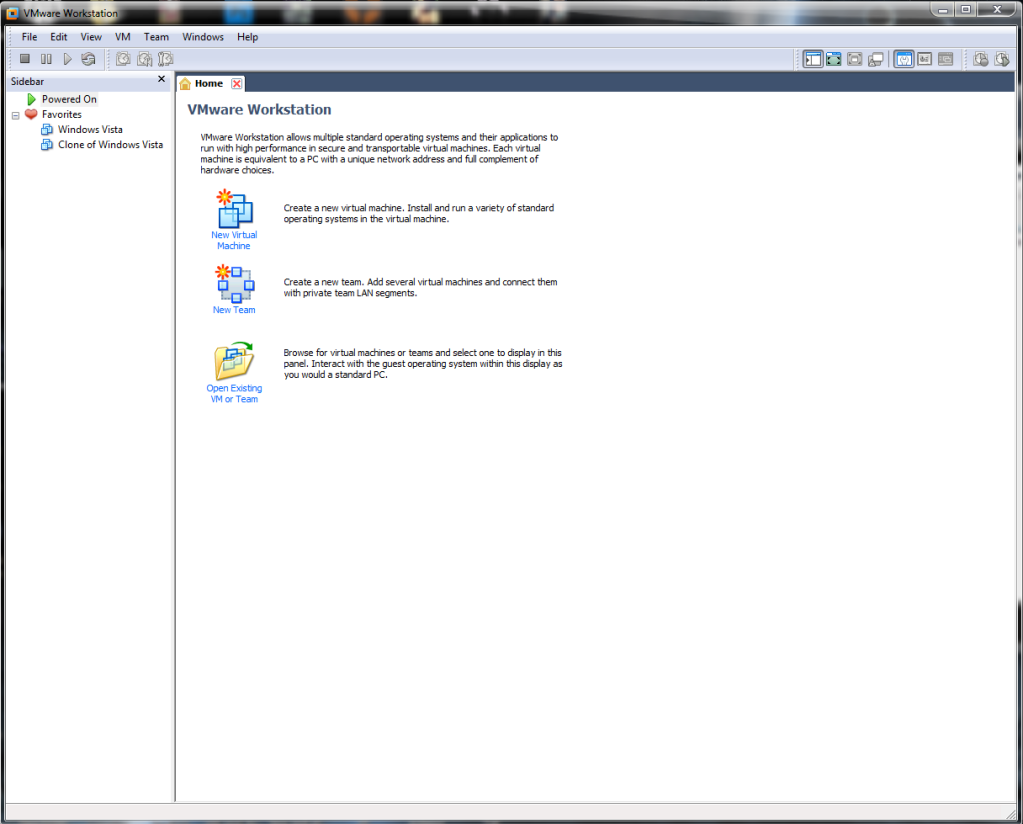
- Now that you have VMWare Workstation open, you will need to click "New Virtual Machine."
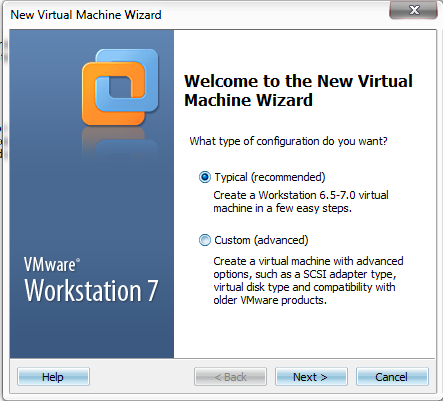
- Now that you have started the creation process, you will will need to leave "Typical" ticked, and click Next.
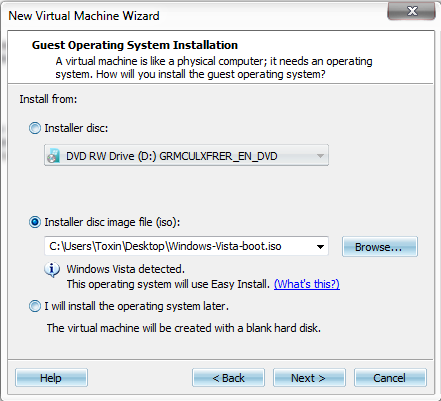
- Now that you are on this page you will need to browse for the ISO image you will be using, mine happens to be a Windows XP ISO.
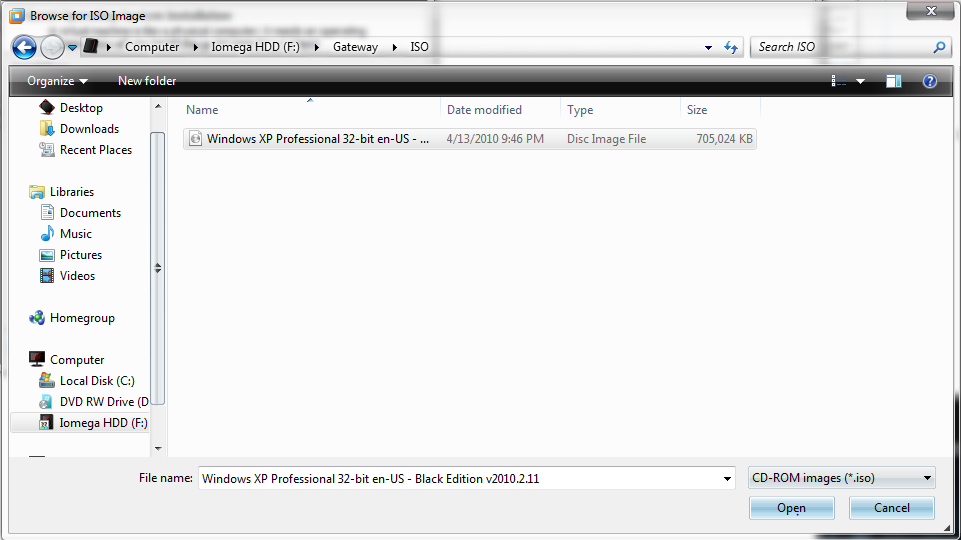
- Once you have found your ISO you will need click open, and then click Next.
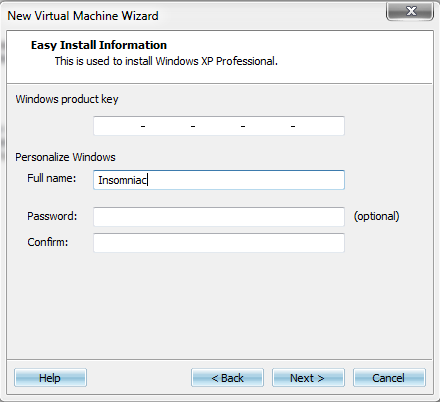
- On this page, I left everything blank for now, if you are using the correct ISO during the setup it should not ask you for a Product Key, however if you are prompted for one you will need to enter one to continue.
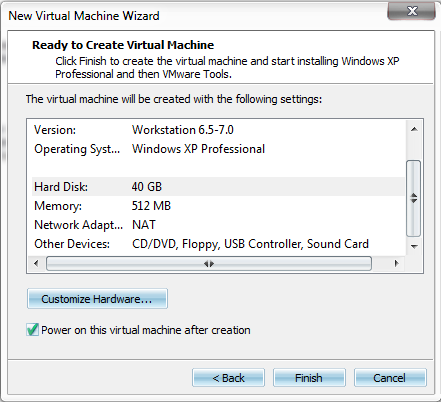
- On this page I left everything default for tutorial purposes, however you are able to change most to all of these settings, such as adding more RAM or HDD Space to your VM.
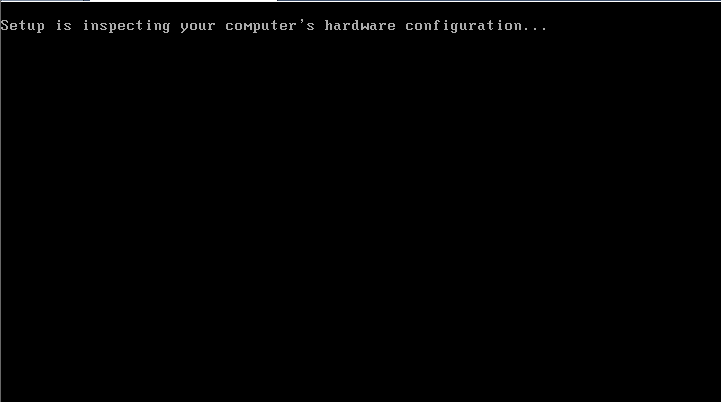
- Once you are finish changing settings, if any at all, you will click Finish, and VMWare will begin the boot up/set up of whatever OS you used. (XP for me.)
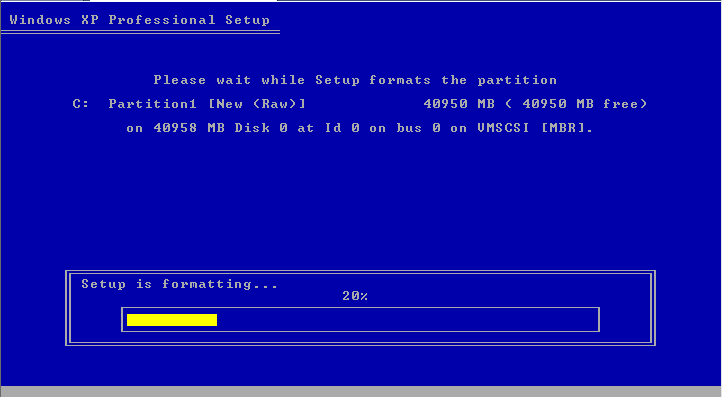
- Now you will just go through the set up as normal, if promoted for information you will need to enter the information to continue.
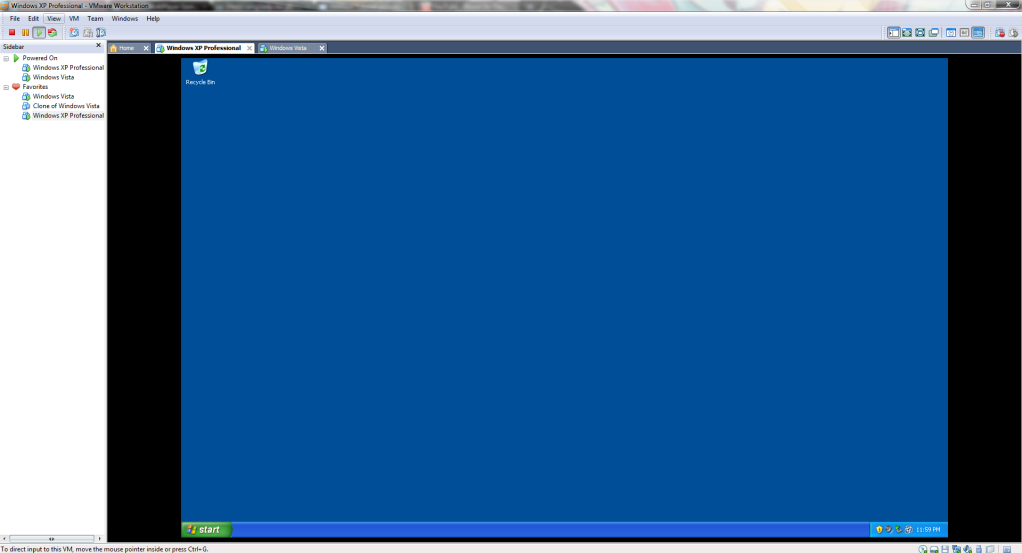
- Once the setup is done, the VM should reboot, then boot up normally just like a normal computer, however there is a a few changes we will need to make before you can install Crossfire and open it properly.
- Enabling the ability to run Crossfire on your VMWare.
- Go to "C:\Users\Insomniac\Documents\Virtual Machines" and select the folder of whatever OS you installed on your VMware. (For me XP again.)
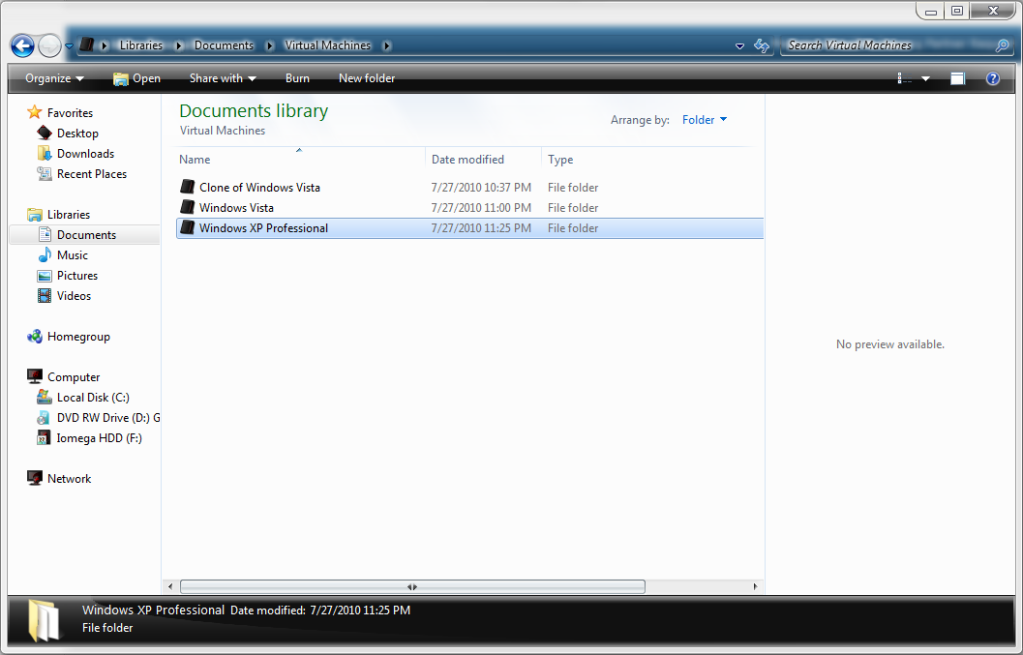
- Go to "C:\Users\Insomniac\Documents\Virtual Machines" and select the folder of whatever OS you installed on your VMware. (For me XP again.)
- Open the OS that you wish to run Crossfire on, and look for the configuration file. The icon for the file should be 3 semi transparent squares, also look at the file description.
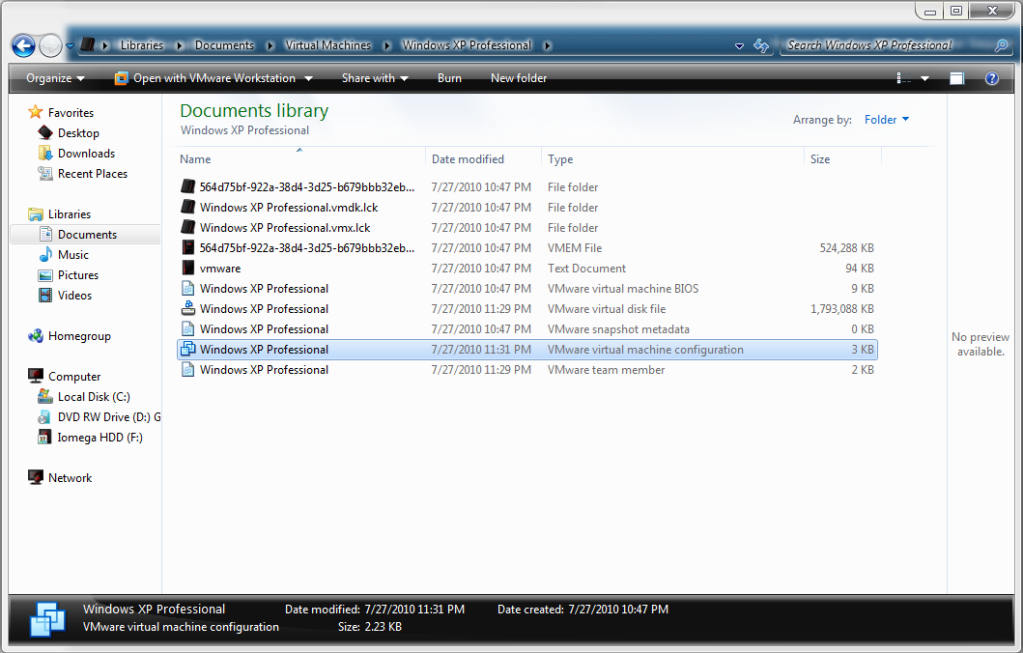
- Open this file in Notepad.
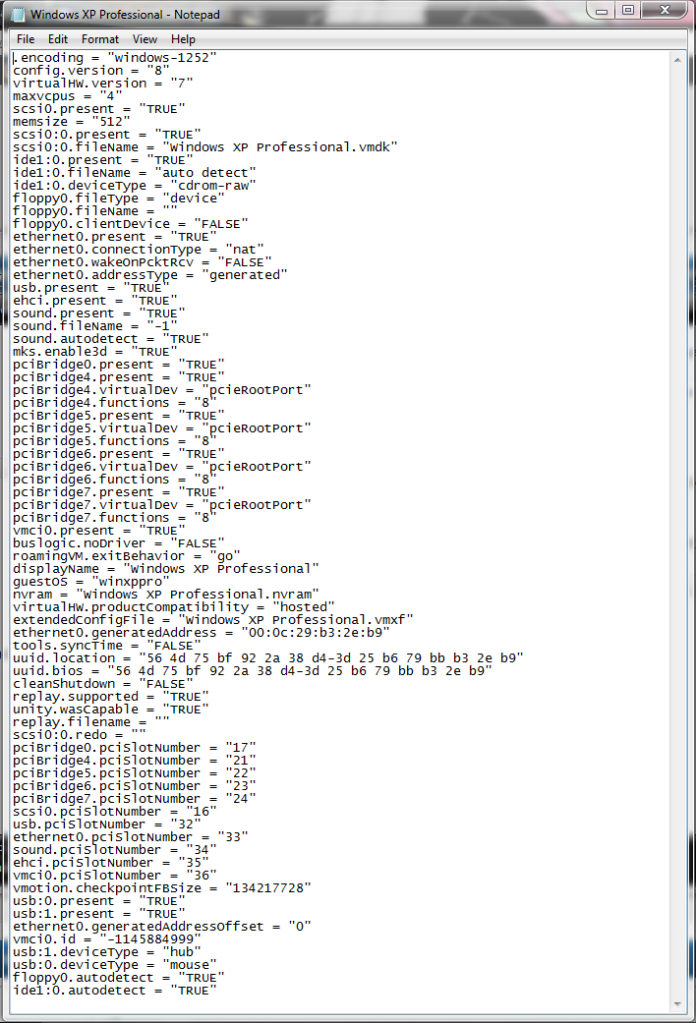
- Add the following code to the file
Code:
svga.vramSize = 268435456
monitor_control.restrict_backdoor = "true"
isolation.tools.getPtrLocation.disable = "true"
isolation.tools.setPtrLocation.disable = "true"
isolation.tools.setVersion.disable = "true"
isolation.tools.getVersion.disable = "true"
monitor_control.disable_directexec = "true"
SMBIOS.reflectHost = "TRUE"
Insert the code after this line:
Code:
unity.wasCapable = "TRUE"
*Or if you can't find that code Just insert it at the bottom. As below.*
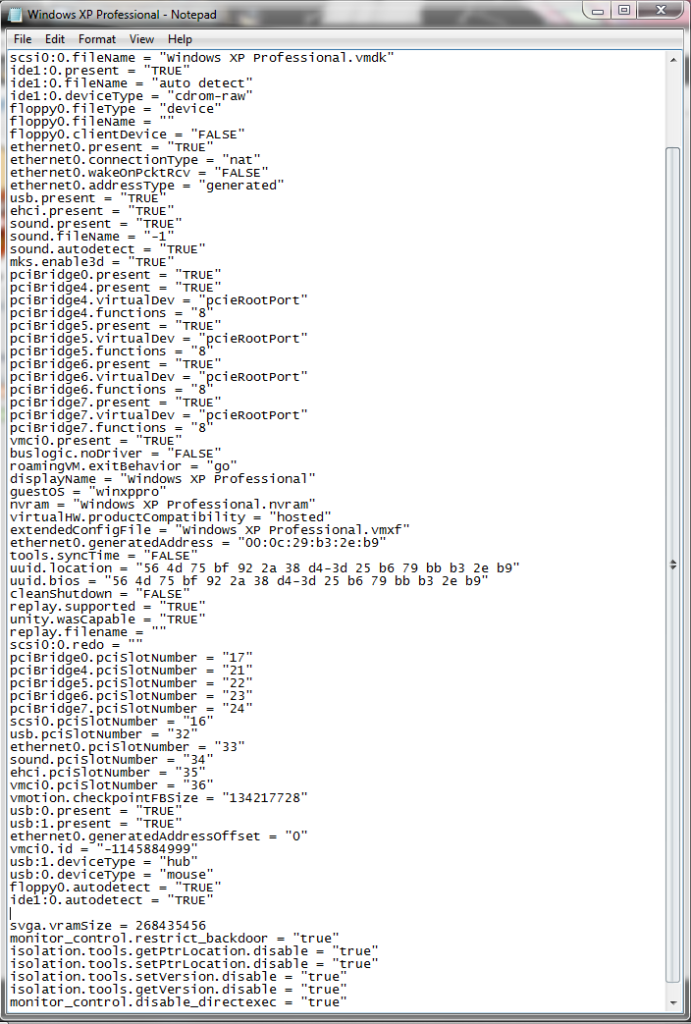
After you've done that turn on your virtual pc and follow the next steps.
- Click Start
- Click Run
- Write regedit
- Go to Edit then Find
- Write ven_15
- Find and Modify ProviderName, write this: ATI/NVIDIA, Inc.
- Find and Modify DriverDesc, write: ATI/NVIDIA SVGA II
- Disabling Send Report Error Messages. (This may be different for different Operating Systems, Lrn2Google.)
- First you will need to right click on your desktop(On your VMWare), and click properties.
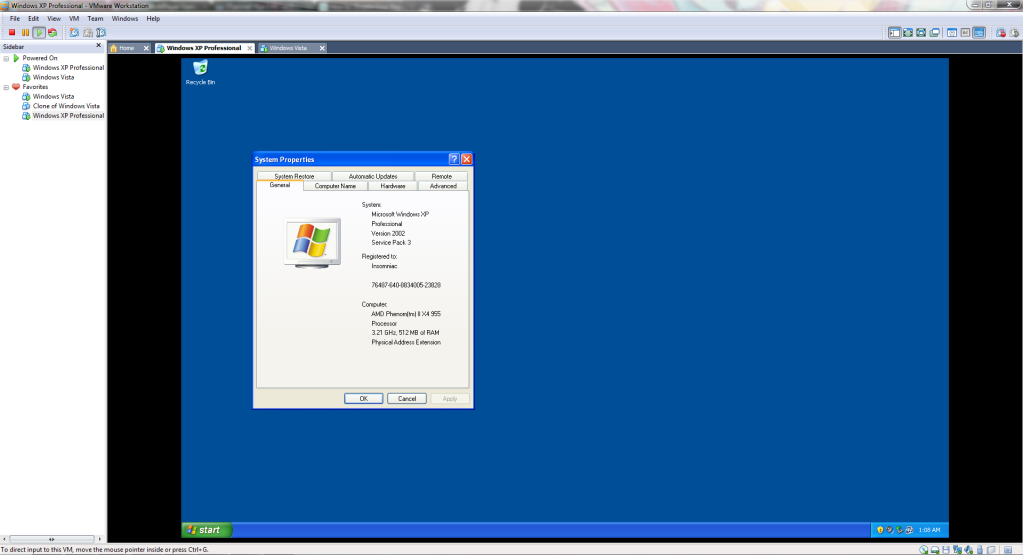
- First you will need to right click on your desktop(On your VMWare), and click properties.
- Next go to the advance tab.
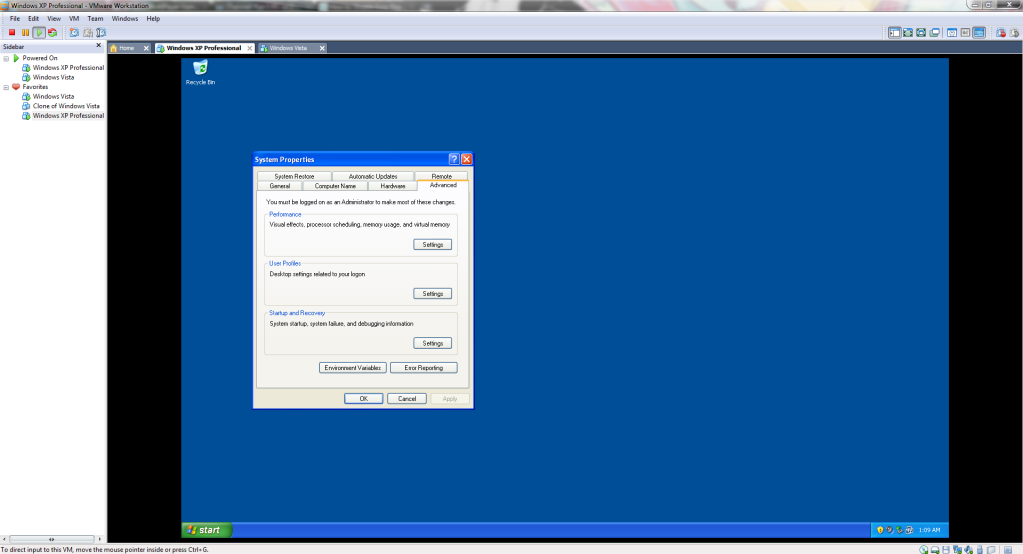
- Now click Error Reporting.
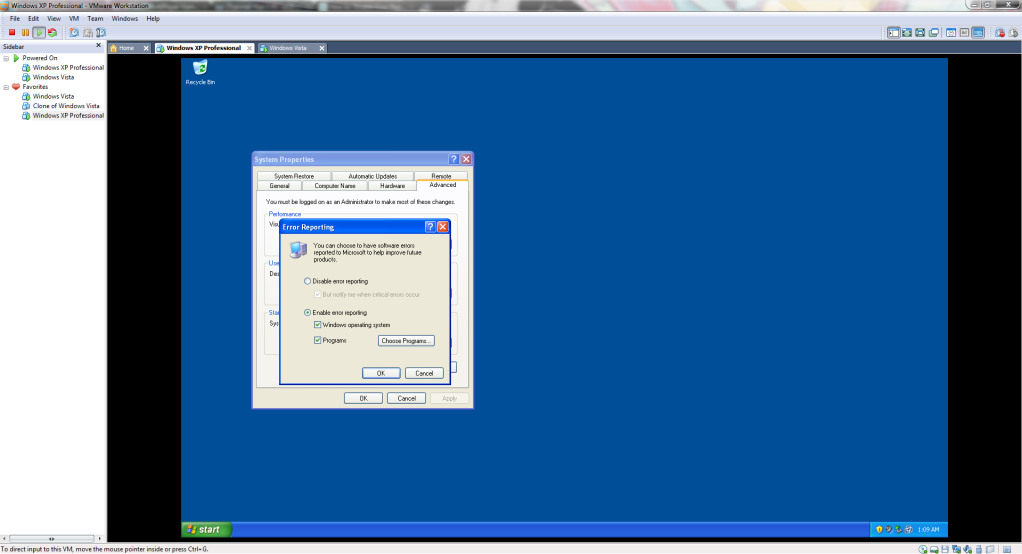
- Now tick the "Disable Error Reporting" bubble, and untick the "But notify me when critical errors occur."
- Now that you have made the changes, apply them, and exit out of the windows.
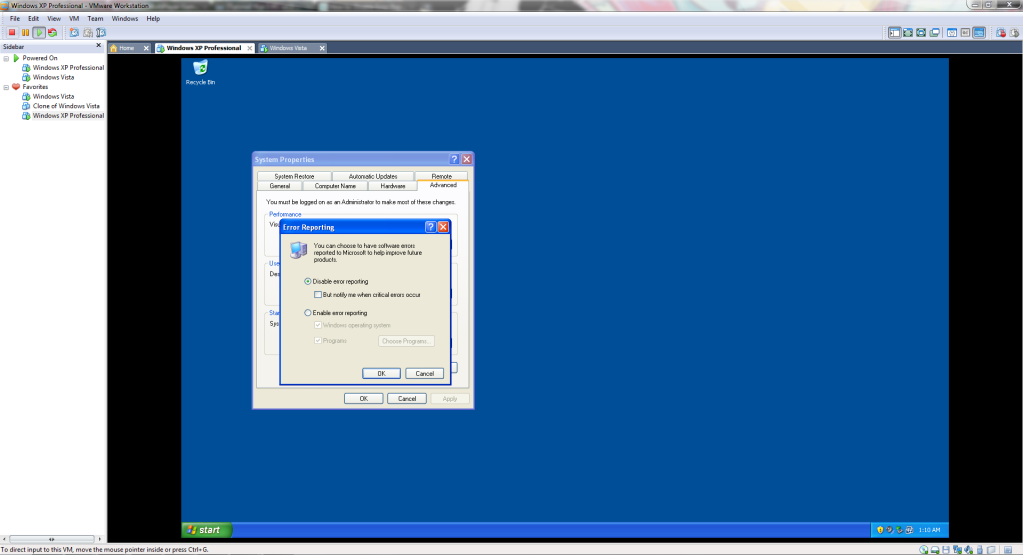
- Now that you have made all the neccessary changes, you will now be able to download Crossfire and open and play on your VMWare.
Also if you need an Windows XP Product Key this one should work fine:
MRX3F-47B9T-2487J-KWKMF-RPWBY
Also if you need a VMWare Workstation Serial any of these should work just fine:
MRX3F-47B9T-2487J-KWKMF-RPWBY
CF54R-4EE54-H81AQ-06P59-QQ2A4
YY3RH-D4Y54-0890Y-X5WZT-Y6RR8
GZ34K-DLWE3-M81FZ-KXXQT-XC8CA
AV3W0-DMD57-H807Z-4FQ5V-PLAW0
CC7W0-AUF8M-H85PZ-3ZQNC-PL0D4
Credit's to - @jonmusic69 @Toxin
 .
. Originally Posted by Euphemistic

 when i got a bit more good pc i will use this tutorial thx

