[TUT] How to make an Updater [VB.net]
[TUT] How to make an Updater [VB.net]
The following codes I put togethor myself and did not leech, I though this would be very useful so I created a tutorial.
Ok, so in most programs you might get that thing on the bottom or at top that says the version name, and if its out of date it will just simply say out of date. Well thats what im going to be teaching you. I will make this tutorial as simple to understand as possible, and once done you might want to check my visual tutorials at YouTube - VBBasics
What you need:
- Visual Basic 2008
- A Web Host
- FileZilla or any other FTP Client
THE DESIGN: STEP 1 - 3
Step 1
We are using Vb.Net, so it is only obvious that you will need to open Visual Basic 2008 if you haven't already. Afterword make a new project, name it anything, or just add this to a current project.
Step 2
Add a Label, change the color to Web Green and change the title to the version.

Step 3
Add a LinkLabel, Make Visible False, change the LinkColor and VisitedLinkColor to Red, and title to something like "Outdated version :: Update now". Make sure the LinkLabel covers the Label.

THE CODING: STEP 4 - 7
Step 4
Double Click the LinkLabel to get to the coding section, and add the following inside the sub.
Change the Orange Text to the website link where you will be providing your updated version, In this case I choice my Floodeh page.

Step 5
Considering you have a website host, you need to get your FTP Account details, this can be found in the Cpanel of the host.

Make a new FTP account, or get an existing one. Then open FileZilla or the FTP Client of your choice, and put in the info you got from the site

Now that you are logged in you are ready for the next steps.
Step 6
Go on your desktop and create a new .TXT file (NotePad File)
In the Notepad we are going to be running this updater by the Build, and not the Version, but making it Visually look like it runs by the version.
A Build is normally a version, but not being decimals, but being an integer. So Version 1 would be build 1, and Version 1.1 would be build 2 and so on.
So what we do is we make a new text file, and write the number of the build you believe it is, mine will be "2", if your just making you program it should be "1"

Save the file as "Version" type being .txt, and then upload that file to your host using the FTP Client.

Now find the URL for that file, normally it would be http://websitename.com/Version.txt.
Keep that URL in mind for the next few steps.
Step 7
Time for the real coding. Here I will break parts up.
In Visual Basic 2008 Click the Form itself so that you get the Form1 load sub.

In there, copy and paste the following code

Step 7 :: Part B
Under the current code that we just did, put the following
Do not edit the following codes unless you had other LinkLabels in your project before you started step 1.
If you had more then 1 link label, I know I did, then change the red Text to what the LinkLabel the name was that was assigned with step 4.

TESTING: STEP 8 - 9
Step 8
Now that we are all done, click the debug button, and look at your app. Should say the version name.

Step 9
Stop Debugging, and go to where we had this piece of code:
Change 2 or whatever number you put, to the number below it, so my case will be 1.

Now start Debugging, and if everything went well, it should say a version is available, then give us a link to the site.

Clicking the link will take you to the latest download. In this case for me,
Ugleh's Floodeh
If you liked this tutorial and had fun learning something new then please take the time to comment and press that Thanks button
Ok, so in most programs you might get that thing on the bottom or at top that says the version name, and if its out of date it will just simply say out of date. Well thats what im going to be teaching you. I will make this tutorial as simple to understand as possible, and once done you might want to check my visual tutorials at YouTube - VBBasics
What you need:
- Visual Basic 2008
- A Web Host
- FileZilla or any other FTP Client
THE DESIGN: STEP 1 - 3
Step 1
We are using Vb.Net, so it is only obvious that you will need to open Visual Basic 2008 if you haven't already. Afterword make a new project, name it anything, or just add this to a current project.
Step 2
Add a Label, change the color to Web Green and change the title to the version.
Step 3
Add a LinkLabel, Make Visible False, change the LinkColor and VisitedLinkColor to Red, and title to something like "Outdated version :: Update now". Make sure the LinkLabel covers the Label.
THE CODING: STEP 4 - 7
Step 4
Double Click the LinkLabel to get to the coding section, and add the following inside the sub.
Code:
System.Diagnostics.Process.Start("http://ugleh.com/Floodeh/")
Step 5
Considering you have a website host, you need to get your FTP Account details, this can be found in the Cpanel of the host.
Make a new FTP account, or get an existing one. Then open FileZilla or the FTP Client of your choice, and put in the info you got from the site
Now that you are logged in you are ready for the next steps.
Step 6
Go on your desktop and create a new .TXT file (NotePad File)
In the Notepad we are going to be running this updater by the Build, and not the Version, but making it Visually look like it runs by the version.
A Build is normally a version, but not being decimals, but being an integer. So Version 1 would be build 1, and Version 1.1 would be build 2 and so on.
So what we do is we make a new text file, and write the number of the build you believe it is, mine will be "2", if your just making you program it should be "1"
Save the file as "Version" type being .txt, and then upload that file to your host using the FTP Client.
Now find the URL for that file, normally it would be http://websitename.com/Version.txt.
Keep that URL in mind for the next few steps.
Step 7
Time for the real coding. Here I will break parts up.
In Visual Basic 2008 Click the Form itself so that you get the Form1 load sub.
In there, copy and paste the following code
Code:
 Dim Build As Integer
        Build = 2

Dim url As String
        url = "http://ugleh.com/Tutorials/VersionChecker/CurrentVersion/version.txt"
- Build will be your current build. So while making this, your build should be the same number you put in your Version.txt file, in that case mine is 2.
- url is the URL i told you to hang on to earlier, put that URL in place of mine.
Step 7 :: Part B
Under the current code that we just did, put the following
Do not edit the following codes unless you had other LinkLabels in your project before you started step 1.
Code:
 Dim request As System.Net.HttpWebRequest = System.Net.HttpWebRequest.Create(url)
        Dim response As System.Net.HttpWebResponse = request.GetResponse()
        Dim sr As System.IO.StreamReader = New System.IO.StreamReader(response.GetResponseStream(), System.Text.Encoding.GetEncoding("windows-1252"))
        Dim Online As Integer
        Online = sr.ReadToEnd()

        If Build >= Online Then
        Else
            LinkLabel1.Visible = True
        End If
TESTING: STEP 8 - 9
Step 8
Now that we are all done, click the debug button, and look at your app. Should say the version name.
Step 9
Stop Debugging, and go to where we had this piece of code:
Code:
Build = 2
Now start Debugging, and if everything went well, it should say a version is available, then give us a link to the site.
Clicking the link will take you to the latest download. In this case for me,
Ugleh's Floodeh
If you liked this tutorial and had fun learning something new then please take the time to comment and press that Thanks button
nice work
Thats some nice work.
thanks very nice dude
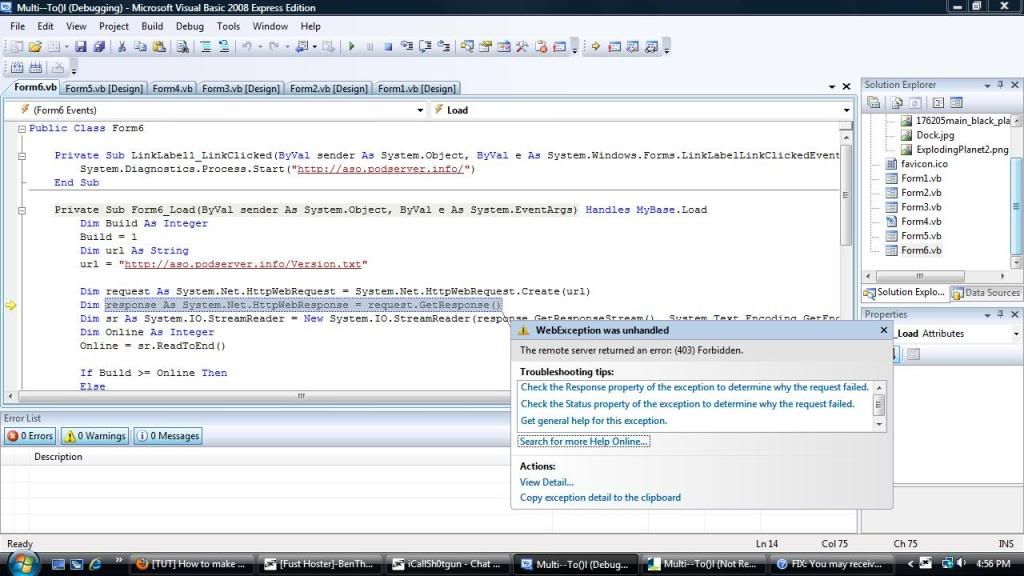
Errorrr :(
it says an error let me post a screeniee
For the record, dont bump threads this old.
- It looks like you don't have the right credentials, hence the error "forbidden."
- It looks like you don't have the right credentials, hence the error "forbidden."
Try catching the error and display it in a messagebox, this might give you a better error.
The page doesn't seem to be available tho.
The page doesn't seem to be available tho.
Error 403 is a http request error, Permission Denied,
You don't have the right credentials to access his server, or it has since changed, this is an old topic, And you are trying to connect to Uglehs Site if following his example
/closed
Create a new thread if you have anymore questions, Please don't bump old threads
Thank You
You don't have the right credentials to access his server, or it has since changed, this is an old topic, And you are trying to connect to Uglehs Site if following his example
/closed
Create a new thread if you have anymore questions, Please don't bump old threads
Thank You
This thread is closed for replies.


