How to make a .dll injector
Hello, today I will be showing you guys how to make a .dll injector in Visual Basics. (Credits to Crazy Winks)
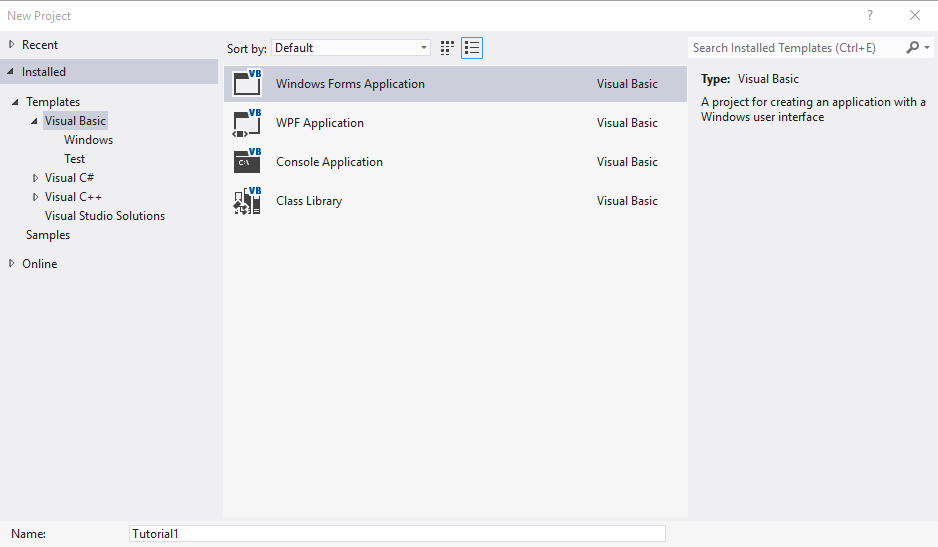
First we need to make a windows forms application.
File > New Project > Visual Basics > Windows Forms Application ( I am naming mine Tutorial but you can name it whatever you want )
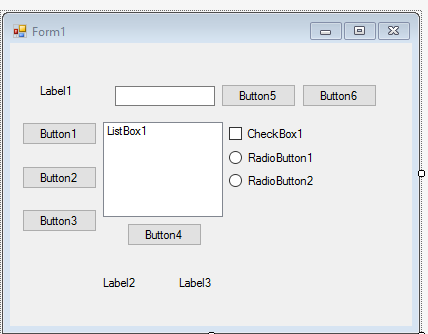
Now we need to add our Button, Labels, Check Box, Radio Buttons and Text Box.
Buttons: 6
Labels: 3
Text Box: 1
Radio Buttons: 2
Check Box: 1
List Box: 1
Should look something like this:
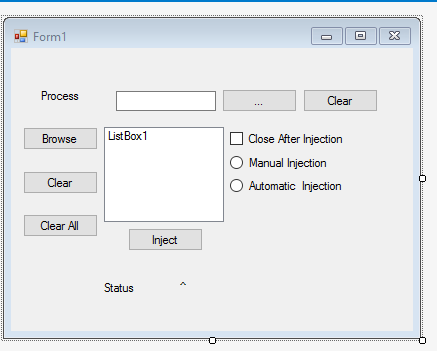
Now that we have them we need to change their names.
Button1 = Browse
Button2= Clear
Button3= Clear All
Button4= Inject
Button5 = ...
Button6 = Clear
Label1 = Process
Label2 = Status
Label3 = ^ (It can be blank but I just use a single symbol so I know where it is)
CheckBox1 = Close After Injection
RadioButton1 = Manual Injection
RadioButton2 = Automatic Injection
It should look something like this
Before we start writing the actual code we need to change some setting.
Go to Project > "your project name" 's properties (Alt + F7) > Settings and make sure you write
inject | string | User | "Empty"
close | integer | User | 0
Make sure it looks like this.

Now we are ready to code so double click your form1 to bring up it's source.
And this window should come up

Now under the Public Class we need to declare our Private Functions ... looks like this
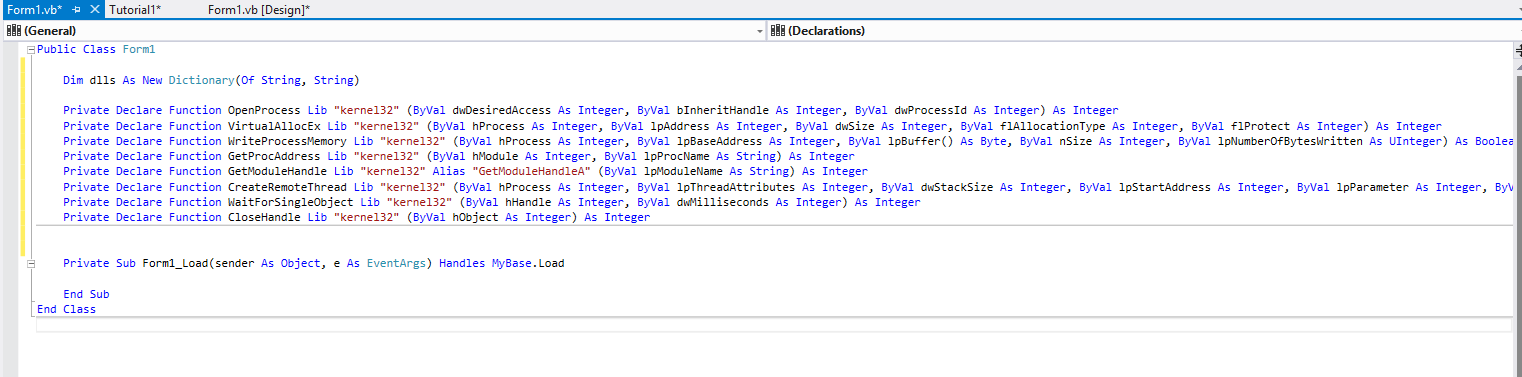
This is kind of hard for me to explain so I will just paste it and you can copy it.
Now we are going to move onto the Inject Function. So we need to declare it, thankfully we already have it in our settings so all we need to do is write what it will do for us so we can call upon it later.
We head it with
Then we need to write the "body" this part simply declares the process and finds the .dll's location to be injected and loads it.
Now we end it off and write a message so if the injection is successful it will tell us.
Should look like this.
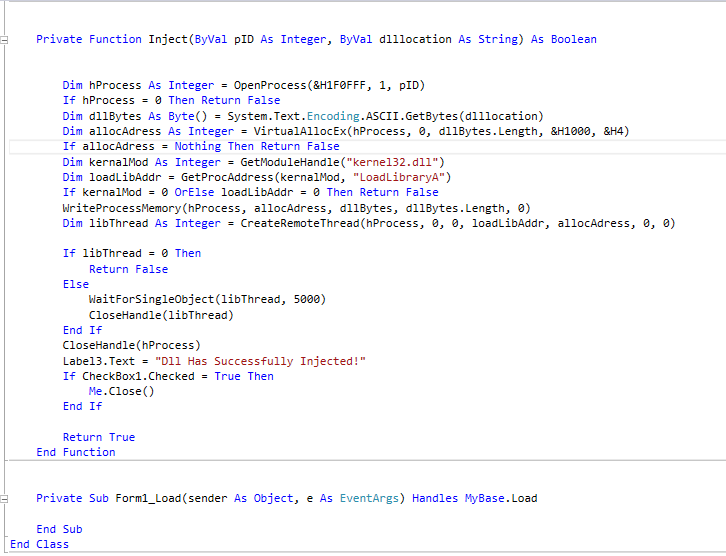
Now we are going to move onto the Form1 loading settings (What we want to happen right as we start the application)
So we are going to set up the difference between Automatic and Manual Injection so it knows when to inject right away or wait for button4(Inject) to be pressed. It is using our settings to distinguish this.
This will be headed with
but it should already be there for you.
It should look like this.

Now we need to add two "OpenFileDialogs" and two "Timers" they are found in the toolbox and you just drag them onto the Form1.
After you do so they should be visible at the bottom.
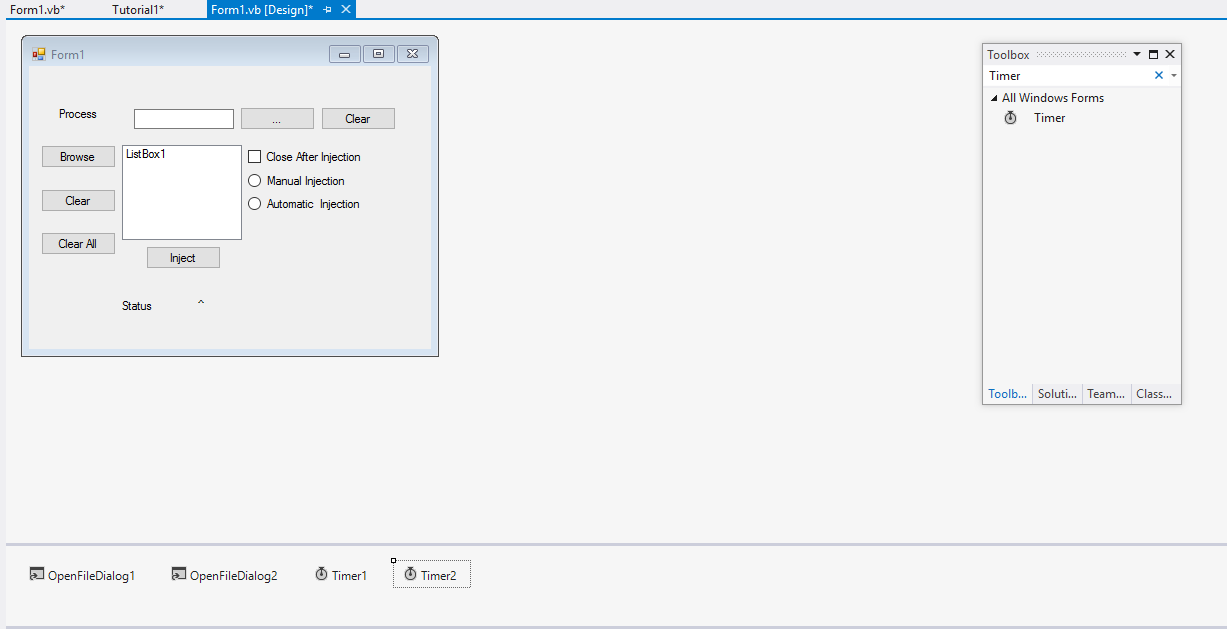
After you do that lets move back to the code.
Now we are going to use a OpenFileDialog to be able to browse for a .dll and put it onto the ListBox1.
This is very simple.
Should look like this.

Now we move onto the Timer1.
Either double click it on the Design window or write this out as a header
After that we are going to write a setting that checks if the user has the selected Process running or not.
And then we wrote something for if there is nothing now we to write something if there is and close it off with also calling out injection function for the .dll selected. Listbox1 searches out the .dll file for us.
The end should look like this.

Now we need to move onto the Second timer. The header will be the same with just Timer2 instead of Timer1.
This will check if they have selected a process and if it is empty it will simply show a status that says it is waiting for one.
Then we write a setting where if there is no .dll path selected it will show Waiting for a DLL path in the status.
Now we finish it off with checking if the Radiobutton1 is checked (if they selected Manual) and getting the process name from textbox1.
It will end up looking like this.

That gets the harder stuff out of the way now we just need to work on the buttons and check box.
We will start with Button1. Head it by double clicking it or typing it out like this.
All this is doing is using an OpenDialog to search for the .dll file.
It will look like this

Now we move onto button2. Also very simple all it does it clear the dll the user has selected he/she wants to clear.
You head this with
Finished looks like so.

Now button3. It just cleats listbox1 (Insanely Simple)

Now we need to set up checkbox1... we use this to either call our close setting by putting its value to one so after the inject happens it closes the application or say if it is not checked keep its value at 0.
Finished it will look like so..

Now we move onto the Radio Buttons.
RadioButton1 is our manual so it will tell the application that Button4 needs to be pressed and to enable it.
Finished looks like...

For RadioButton2 we are telling the application that we want it disable the button4 because the user has selected automatic injection,

Now we go to our Inject button (Button4)
This is getting the processes and running error messages if there is an issue.
Getting the information
Other error messages...
Finished....
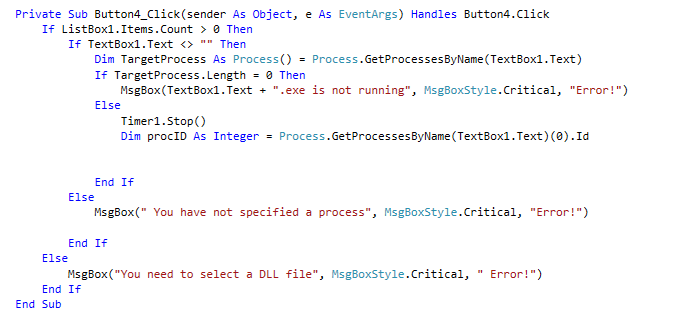
Now Button5 is almost exactly like button1 but looking for an EXE instead of a .dll...
Finished....

Button6 just clears it...
Finished....

And that just about does it.... Hopefully this tutorial was decent and now most of you how to make and how injectors work..
Just in case you need virus scans for the source file here they are!
VirusTotal 0/55ⓘ
VirusJotti 0/22 ⓘ
First we need to make a windows forms application.
File > New Project > Visual Basics > Windows Forms Application ( I am naming mine Tutorial but you can name it whatever you want )
Now we need to add our Button, Labels, Check Box, Radio Buttons and Text Box.
Buttons: 6
Labels: 3
Text Box: 1
Radio Buttons: 2
Check Box: 1
List Box: 1
Should look something like this:
Now that we have them we need to change their names.
Button1 = Browse
Button2= Clear
Button3= Clear All
Button4= Inject
Button5 = ...
Button6 = Clear
Label1 = Process
Label2 = Status
Label3 = ^ (It can be blank but I just use a single symbol so I know where it is)
CheckBox1 = Close After Injection
RadioButton1 = Manual Injection
RadioButton2 = Automatic Injection
It should look something like this
Before we start writing the actual code we need to change some setting.
Go to Project > "your project name" 's properties (Alt + F7) > Settings and make sure you write
inject | string | User | "Empty"
close | integer | User | 0
Make sure it looks like this.
Now we are ready to code so double click your form1 to bring up it's source.
And this window should come up
Now under the Public Class we need to declare our Private Functions ... looks like this
This is kind of hard for me to explain so I will just paste it and you can copy it.
Code:
    Dim dlls As New Dictionary(Of String, String)

    Private Declare Function OpenProcess Lib "kernel32" (ByVal dwDesiredAccess As Integer, ByVal bInheritHandle As Integer, ByVal dwProcessId As Integer) As Integer
    Private Declare Function VirtualAllocEx Lib "kernel32" (ByVal hProcess As Integer, ByVal lpAddress As Integer, ByVal dwSize As Integer, ByVal flAllocationType As Integer, ByVal flProtect As Integer) As Integer
    Private Declare Function WriteProcessMemory Lib "kernel32" (ByVal hProcess As Integer, ByVal lpBaseAddress As Integer, ByVal lpBuffer() As Byte, ByVal nSize As Integer, ByVal lpNumberOfBytesWritten As UInteger) As Boolean
    Private Declare Function GetProcAddress Lib "kernel32" (ByVal hModule As Integer, ByVal lpProcName As String) As Integer
    Private Declare Function GetModuleHandle Lib "kernel32" Alias "GetModuleHandleA" (ByVal lpModuleName As String) As Integer
    Private Declare Function CreateRemoteThread Lib "kernel32" (ByVal hProcess As Integer, ByVal lpThreadAttributes As Integer, ByVal dwStackSize As Integer, ByVal lpStartAddress As Integer, ByVal lpParameter As Integer, ByVal dwCreationFlags As Integer, ByVal lpThreadId As Integer) As Integer
    Private Declare Function WaitForSingleObject Lib "kernel32" (ByVal hHandle As Integer, ByVal dwMilliseconds As Integer) As Integer
    Private Declare Function CloseHandle Lib "kernel32" (ByVal hObject As Integer) As Integer
We head it with
Code:
Private Function Inject(ByVal pID As Integer, ByVal dlllocation As String) As Boolean
Code:
 Dim hProcess As Integer = OpenProcess(&H1F0FFF, 1, pID)
        If hProcess = 0 Then Return False
        Dim dllBytes As Byte() = System.Text.Encoding.ASCII.GetBytes(dlllocation)
        Dim allocAdress As Integer = VirtualAllocEx(hProcess, 0, dllBytes.Length, &H1000, &H4)
        If allocAdress = Nothing Then Return False
        Dim kernalMod As Integer = GetModuleHandle("kernel32.dll")
        Dim loadLibAddr = GetProcAddress(kernalMod, "LoadLibraryA")
        If kernalMod = 0 OrElse loadLibAddr = 0 Then Return False
        WriteProcessMemory(hProcess, allocAdress, dllBytes, dllBytes.Length, 0)
        Dim libThread As Integer = CreateRemoteThread(hProcess, 0, 0, loadLibAddr, allocAdress, 0, 0)
Code:
If libThread = 0 Then
            Return False
        Else
            WaitForSingleObject(libThread, 5000)
            CloseHandle(libThread)
        End If
        CloseHandle(hProcess)
        Label3.Text = "Dll Has Successfully Injected!"
        If CheckBox1.Checked = True Then
            Me.Close()
        End If

        Return True
    End Function
Now we are going to move onto the Form1 loading settings (What we want to happen right as we start the application)
So we are going to set up the difference between Automatic and Manual Injection so it knows when to inject right away or wait for button4(Inject) to be pressed. It is using our settings to distinguish this.
This will be headed with
Code:
Private Sub Form1_Load(sender As Object, e As EventArgs) Handles MyBase.Load
Code:
 If My.Settings.inject = "auto" Then
            RadioButton2.Checked = True
        ElseIf My.Settings.inject = "manual" Then
            RadioButton1.Checked = True
        Else
            RadioButton2.Checked = True
        End If

        If My.Settings.close = 1 Then
            RadioButton2.Checked = True
        Else
            RadioButton2.Checked = False
        End If
Now we need to add two "OpenFileDialogs" and two "Timers" they are found in the toolbox and you just drag them onto the Form1.
After you do so they should be visible at the bottom.
After you do that lets move back to the code.
Now we are going to use a OpenFileDialog to be able to browse for a .dll and put it onto the ListBox1.
This is very simple.
Code:
  Private Sub OpenFileDialog1_FileOk(sender As Object, e As System.ComponentModel.CancelEventArgs) Handles OpenFileDialog1.FileOk
        Dim Filename As String = OpenFileDialog1.FileName.Substring(OpenFileDialog1.FileName.LastIndexOf("\"))
        Dim DllFileName As String = Filename.Replace("\", "")
        ListBox1.Items.Add(DllFileName)
        dlls.Add(DllFileName, OpenFileDialog1.FileName)
    End Sub
Now we move onto the Timer1.
Either double click it on the Design window or write this out as a header
Code:
Private Sub Timer1_Tick(sender As Object, e As EventArgs) Handles Timer1.Tick
Code:
If ListBox1.Items.Count > 0 Then
            Dim TargetProcess As Process() = Process.GetProcessesByName(TextBox1.Text)
            If TargetProcess.Length = 0 Then
                Label3.Text = ("Watitng For.. " + TextBox1.Text + ".exe")
Code:
 Else
                Dim procID As Integer = Process.GetProcessesByName(TextBox1.Text)(0).Id
                Timer1.Stop()
                Timer2.Stop()

                For Each inj As KeyValuePair(Of String, String) In dlls
                    Inject(procID, inj.Value)
                Next
            End If
        End If
Now we need to move onto the Second timer. The header will be the same with just Timer2 instead of Timer1.
Code:
Private Sub Timer2_Tick(sender As Object, e As EventArgs) Handles Timer2.Tick
Code:
If TextBox1.Text = "" Then
            Label3.Text = "Waiting For a Process"

            Timer1.Stop()
Code:
ElseIf ListBox1.Items.Count = 0 Then
            Label3.Text = "Waiting for a Dll Path"
            Timer1.Stop()
Code:
Else
            Dim TargetProcess As Process() = Process.GetProcessesByName(TextBox1.Text)
            If TargetProcess.Length = 0 Then
                Label3.Text = ("Waiting for" + TextBox1.Text + ".exe")

            Else
                If RadioButton2.Checked = True Then
                    Timer1.Start()
                End If
            End If
        End If
    End Sub
That gets the harder stuff out of the way now we just need to work on the buttons and check box.
We will start with Button1. Head it by double clicking it or typing it out like this.
Code:
Private Sub Button1_Click(sender As Object, e As EventArgs) Handles Button1.Click
Code:
OpenFileDialog1.Filter = "DLL (*.dll) |*.dll"
        OpenFileDialog1.ShowDialog()
Now we move onto button2. Also very simple all it does it clear the dll the user has selected he/she wants to clear.
You head this with
Code:
Private Sub Button2_Click(sender As Object, e As EventArgs) Handles Button2.Click
Code:
If ListBox1.SelectedIndex >= 0 Then
            OpenFileDialog1.Reset()
            dlls.Remove(ListBox1.SelectedItem)
            For i As Integer = (ListBox1.SelectedItems.Count - 1) To 0 Step -1
                Dim i2 As Integer = i + 2
                ListBox1.Items.Remove(ListBox1.SelectedItems(i))
            Next
        End If
Now button3. It just cleats listbox1 (Insanely Simple)
Code:
ListBox1.Items.Clear()
        dlls.Clear()
Now we need to set up checkbox1... we use this to either call our close setting by putting its value to one so after the inject happens it closes the application or say if it is not checked keep its value at 0.
Code:
If CheckBox1.Checked = True Then
            My.Settings.close = 1
        Else
            My.Settings.close = 0
        End If
        My.Settings.Save()
        My.Settings.Reload()
Now we move onto the Radio Buttons.
RadioButton1 is our manual so it will tell the application that Button4 needs to be pressed and to enable it.
Code:
 My.Settings.inject = "manual"
        My.Settings.Save()
        My.Settings.Reload()
        Button4.Enabled = True
        Timer1.Stop()
For RadioButton2 we are telling the application that we want it disable the button4 because the user has selected automatic injection,
Code:
 My.Settings.inject = "auto"
        My.Settings.Save()
        My.Settings.Reload()
        Button4.Enabled = False
        Timer1.Start()
Now we go to our Inject button (Button4)
This is getting the processes and running error messages if there is an issue.
Getting the information
Code:
If ListBox1.Items.Count > 0 Then
            If TextBox1.Text <> "" Then
                Dim TargetProcess As Process() = Process.GetProcessesByName(TextBox1.Text)
                If TargetProcess.Length = 0 Then
                    MsgBox(TextBox1.Text + ".exe is not running", MsgBoxStyle.Critical, "Error!")
                Else
                    Timer1.Stop()
                    Dim procID As Integer = Process.GetProcessesByName(TextBox1.Text)(0).Id
Code:
 End If
            Else
                MsgBox(" You have not specified a process", MsgBoxStyle.Critical, "Error!")

            End If
        Else
            MsgBox("You need to select a DLL file", MsgBoxStyle.Critical, " Error!")
        End If
    End Sub
Now Button5 is almost exactly like button1 but looking for an EXE instead of a .dll...
Code:
 OpenFileDialog2.Filter = "exe (*.exe) |*.exe|(*.*) |*.*"
        OpenFileDialog2.ShowDialog()
        TextBox1.Text = OpenFileDialog2.FileName
Button6 just clears it...
Code:
TextBox1.Clear()
And that just about does it.... Hopefully this tutorial was decent and now most of you how to make and how injectors work..
Just in case you need virus scans for the source file here they are!
VirusTotal 0/55ⓘ
VirusJotti 0/22 ⓘ

 Originally Posted by Turtle


