Fixing MBR
I have been informed that a small handful of members have been hit by a nasty program, which overwrote the MBR and partition table; rendering people's PCs unbootable and kept displaying a message on the screen. Here is the process in restoring your PC into a working state.
Part One - Restoring the disk partitions
So from my testing, it appears that the partition information is overwritten which causes many tools to recognise the entire system disk as unallocated.
1. Obtain MiniTool Partition Wizard (recommend 32-bit) and burn the ISO to a disc. In Windows 7, 8/8.1 and 10, you can simply right-click on the ISO and select Burn disc image.

Don't have a disc drive? Use Rufus to make a bootable USB using the same ISO. Instructions can be found here:
http://www.techrepublic.com/article/...almost-any-os/
2. Insert the disc (or USB) into the unbootable PC and ensure that it loads the disc drive (or USB) first. This will vary from computer to computer, but most will offer an options like "F12 Boot Menu". Older ones will only offer "DEL to Enter Setup": you will need to change the priority of the disc drive (or USB) so it loads first. Still need help? Google "how to boot from CD".
3. Once the program has loaded, you will be presented with this, just press Enter:

4. Click on "Partition Recovery Wizard" on the left and select the disk which matches your main system drive (refer to the drive's size to help find the right one). You will notice that it's marked as unallocated. Click Next:

5. Select "Full Scan" and click Next. Select "Quick Scan" and click Next. It will display a list of partitions that it found on the drive:

Here, my original system drive only had 1 partition so everything looks OK. Tick the partitions that you want to recover and click Finish.
6. Select the main partition (read the note below this picture) and click Set Active on the left. In my example it's the one that is 9.99GB.

Note: If you don't know which partition to select, click on each partition and click on Explore Partition. Any partitions which are important should be Set Active (this might include separate drive letters you created yourself).

7. Finally, once you set it as active, click Apply and close the program.
Part Two - Fixing the MBR
Now that the partitions have been restored, its time to restore the MBR code which has been overwritten.
1. Obtain a bootable copy of Windows. If you do not have a copy, you can use Microsoft's Windows 10 Media Creation Tool to get an ISO or create a bootable USB copy of Windows. It doesn't matter if you have an older version of Windows, it will still work regardless.
Note: It doesn't matter if its 32-bit or 64-bit or what language it's in. Just be warned that you can't fit both a 32-bit/64-bit copy of Windows 10 into a single DVD. It's either one or the other.
2. Boot into your bootable copy of Windows just like in part one.
3. Go through the initial setup screen and then click Repair your computer.
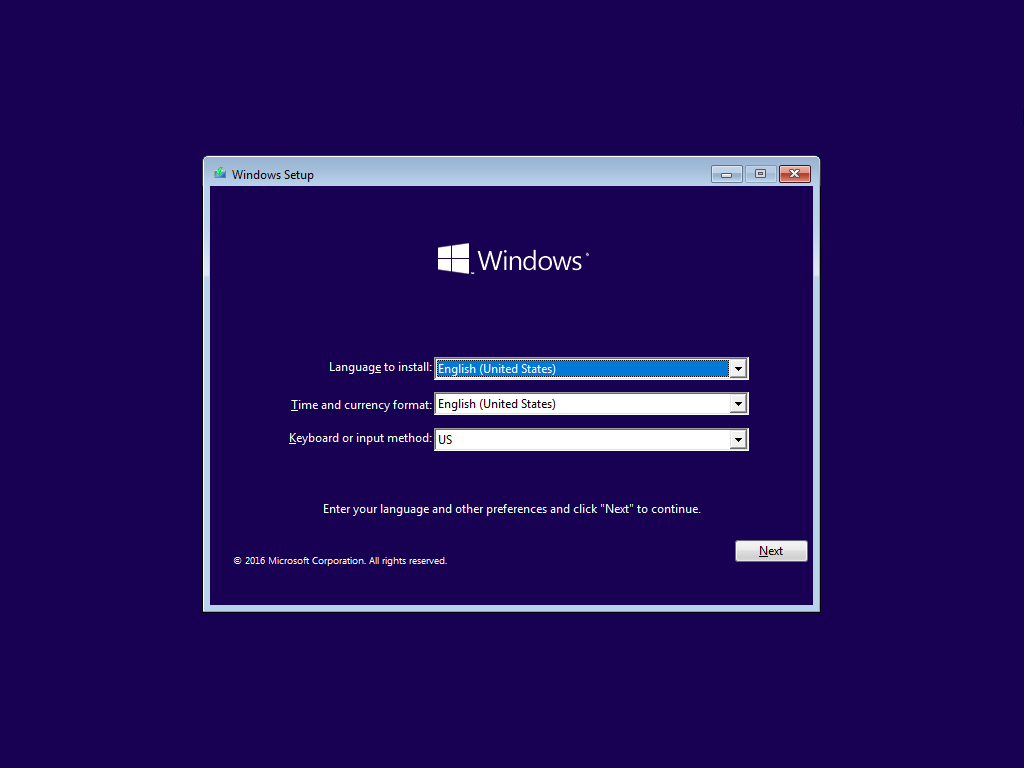

4. Access the Command Prompt (on Windows 8 and 10 DVD, you click "Troubleshoot" first). Enter the following command and hit the Enter key:

5. Close Command Prompt, turn off your PC and start it up again. Make sure to remove the disc or USB.
6. It's alive! (Yes, I used XP as an example).

Part One - Restoring the disk partitions
So from my testing, it appears that the partition information is overwritten which causes many tools to recognise the entire system disk as unallocated.
1. Obtain MiniTool Partition Wizard (recommend 32-bit) and burn the ISO to a disc. In Windows 7, 8/8.1 and 10, you can simply right-click on the ISO and select Burn disc image.
Don't have a disc drive? Use Rufus to make a bootable USB using the same ISO. Instructions can be found here:
http://www.techrepublic.com/article/...almost-any-os/
2. Insert the disc (or USB) into the unbootable PC and ensure that it loads the disc drive (or USB) first. This will vary from computer to computer, but most will offer an options like "F12 Boot Menu". Older ones will only offer "DEL to Enter Setup": you will need to change the priority of the disc drive (or USB) so it loads first. Still need help? Google "how to boot from CD".
3. Once the program has loaded, you will be presented with this, just press Enter:
4. Click on "Partition Recovery Wizard" on the left and select the disk which matches your main system drive (refer to the drive's size to help find the right one). You will notice that it's marked as unallocated. Click Next:
5. Select "Full Scan" and click Next. Select "Quick Scan" and click Next. It will display a list of partitions that it found on the drive:
Here, my original system drive only had 1 partition so everything looks OK. Tick the partitions that you want to recover and click Finish.
6. Select the main partition (read the note below this picture) and click Set Active on the left. In my example it's the one that is 9.99GB.
Note: If you don't know which partition to select, click on each partition and click on Explore Partition. Any partitions which are important should be Set Active (this might include separate drive letters you created yourself).
7. Finally, once you set it as active, click Apply and close the program.
Part Two - Fixing the MBR
Now that the partitions have been restored, its time to restore the MBR code which has been overwritten.
1. Obtain a bootable copy of Windows. If you do not have a copy, you can use Microsoft's Windows 10 Media Creation Tool to get an ISO or create a bootable USB copy of Windows. It doesn't matter if you have an older version of Windows, it will still work regardless.
Note: It doesn't matter if its 32-bit or 64-bit or what language it's in. Just be warned that you can't fit both a 32-bit/64-bit copy of Windows 10 into a single DVD. It's either one or the other.
2. Boot into your bootable copy of Windows just like in part one.
3. Go through the initial setup screen and then click Repair your computer.
4. Access the Command Prompt (on Windows 8 and 10 DVD, you click "Troubleshoot" first). Enter the following command and hit the Enter key:
Code:
bootrec /fixmbr
5. Close Command Prompt, turn off your PC and start it up again. Make sure to remove the disc or USB.
6. It's alive! (Yes, I used XP as an example).
 .
. Originally Posted by Kyaski


