Sony vegas Pro-Tutorial for Beginners
Sony Vegas Pro tutorial for begginers
Hey in this tutorial im gonna show you how to use Sony vegas pro.
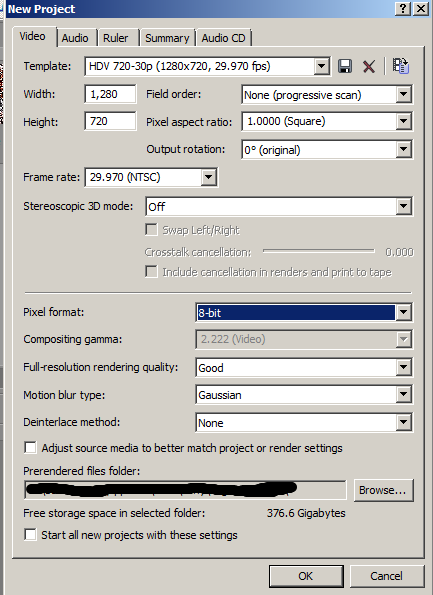
First Just open it, and make new file. Now just use a default settings like are this:

So when you have created a new file you can see a time line, a preview window and a Bar with transitions, project media, explorer, video FX and media generators:

Ok so now click file and then import and media now select any clip you want. Now click the Project Media and drag the clip to your Timeline.So now you can add text or effects or anything else to your clip but first i will show you how to add text.
TEXT:
Just make a new video track right click in the empty area and chose insert video track or just click ctrl+shift+Q:

Now you can click media generators and then Text or just right click on new track and select insert text media.Now should a new window opened up:

Now you can type in what ever you want, you can change a font or a size in first window, in second you can place it wherever you want, in third you can select color adjust opacity..., in fourth you can chose a outline shadow or deformation.On the bottom you have button Animate, where you can make a new keyframes:

Now when you make a new text you can just place wherever you want on timeline.
EFFECTS:
When you do that you can add some Effects to the clip, just in the bar select the Video FX and there you have a list of all effects.Just chose for example TV Simulate. There you have three presets: TV Look, Bad Sync and reset to none just drag the bad sync to the clip when you do that the new window will open There you can adjust setting and animate them with keyframes just select any line and drag them around then add a new keyframe and drag them around again. Now just close the window and play the preview and take a look what you have done so far.
Now lets just closer look how you make a effects just for the short time. Right click on the clip and select Video event FX, then go to animate and delete all the keyframes except the first one, when you do that just go to about 00:00:04:00 and add the keyframe:

Select the keyframe, then go up there when it says: bad sync and chose reset to none:

Then go to about 00:00:04;05 and make a new keyframe select it then go there where you have selected reset to none and select bad sync. Make a new keyframe at 00:00:08;00. Then make a new keyframe at 00:00:08;05 and select it and select reset to none again, then just go to the first keyframe which was made automatically, and select reset to none. Now preview the video again.
Now if you want just add a new effect and animate them.
TRANSITIONS:
Now we will take a look of transitions, first add a new clip(file-import-media), and drag it to timeline next to the first clip:

Now click the transitions and add any transition you want. For example i will select Page peel and the first one, just drag it between clips. Then the window will pop out i never change anything on it, but you can if you want. Just change if you want anything and close the window.
SLOW MOTION OR FAST MOTION OR WHATEVER
We will add some speed line. Just right clinck on any clip and select Insert/remove envelope and then velocity with this you can drag up or down to select the speed of playing. Rigt click on the line and select add point to add point, you can right click on point and select Set To and just type in nay number to 300 or to -100.
MUSIC:
We will add some music. Just go to file import and then media and select any song you want.
Then drag it to the timeline and if you want you can lock it for free editing a movie. Just right click on song and select switches and lock.
QUALITY:
So if you want to change quality just go to file and then properties then select any quality you want:
RENDER:
So for the end i will show you how to render the movie that you have make.
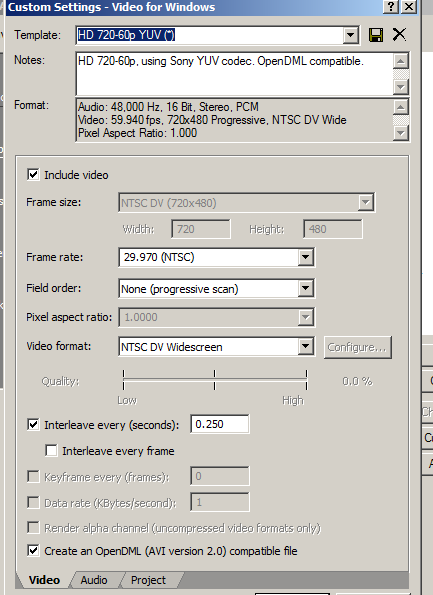
Go to file select render as, in the window that will pop out, you can type a project name, then just select an .AVI or .wmv. now click save (or render) and wait for the finish
Hey in this tutorial im gonna show you how to use Sony vegas pro.
First Just open it, and make new file. Now just use a default settings like are this:
So when you have created a new file you can see a time line, a preview window and a Bar with transitions, project media, explorer, video FX and media generators:
Ok so now click file and then import and media now select any clip you want. Now click the Project Media and drag the clip to your Timeline.So now you can add text or effects or anything else to your clip but first i will show you how to add text.
TEXT:
Just make a new video track right click in the empty area and chose insert video track or just click ctrl+shift+Q:
Now you can click media generators and then Text or just right click on new track and select insert text media.Now should a new window opened up:
Now you can type in what ever you want, you can change a font or a size in first window, in second you can place it wherever you want, in third you can select color adjust opacity..., in fourth you can chose a outline shadow or deformation.On the bottom you have button Animate, where you can make a new keyframes:
Now when you make a new text you can just place wherever you want on timeline.
EFFECTS:
When you do that you can add some Effects to the clip, just in the bar select the Video FX and there you have a list of all effects.Just chose for example TV Simulate. There you have three presets: TV Look, Bad Sync and reset to none just drag the bad sync to the clip when you do that the new window will open There you can adjust setting and animate them with keyframes just select any line and drag them around then add a new keyframe and drag them around again. Now just close the window and play the preview and take a look what you have done so far.
Now lets just closer look how you make a effects just for the short time. Right click on the clip and select Video event FX, then go to animate and delete all the keyframes except the first one, when you do that just go to about 00:00:04:00 and add the keyframe:
Select the keyframe, then go up there when it says: bad sync and chose reset to none:
Then go to about 00:00:04;05 and make a new keyframe select it then go there where you have selected reset to none and select bad sync. Make a new keyframe at 00:00:08;00. Then make a new keyframe at 00:00:08;05 and select it and select reset to none again, then just go to the first keyframe which was made automatically, and select reset to none. Now preview the video again.
Now if you want just add a new effect and animate them.
TRANSITIONS:
Now we will take a look of transitions, first add a new clip(file-import-media), and drag it to timeline next to the first clip:
Now click the transitions and add any transition you want. For example i will select Page peel and the first one, just drag it between clips. Then the window will pop out i never change anything on it, but you can if you want. Just change if you want anything and close the window.
SLOW MOTION OR FAST MOTION OR WHATEVER
We will add some speed line. Just right clinck on any clip and select Insert/remove envelope and then velocity with this you can drag up or down to select the speed of playing. Rigt click on the line and select add point to add point, you can right click on point and select Set To and just type in nay number to 300 or to -100.
MUSIC:
We will add some music. Just go to file import and then media and select any song you want.
Then drag it to the timeline and if you want you can lock it for free editing a movie. Just right click on song and select switches and lock.
QUALITY:
So if you want to change quality just go to file and then properties then select any quality you want:
RENDER:
So for the end i will show you how to render the movie that you have make.
Go to file select render as, in the window that will pop out, you can type a project name, then just select an .AVI or .wmv. now click save (or render) and wait for the finish
@Shane
@Swiftdude
@Coke
@Ghost
@Gab
Could anyone stick this for more people to see?
So if you want i could make a video tutorial
If i have made any mistakes in text just tell me please
 helpful.