 Finding Nemo Tutorial
Finding Nemo Tutorial
MADE BY RYGUY
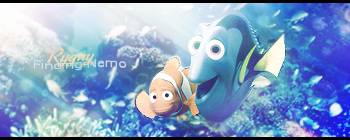
This is the outcome
Resources
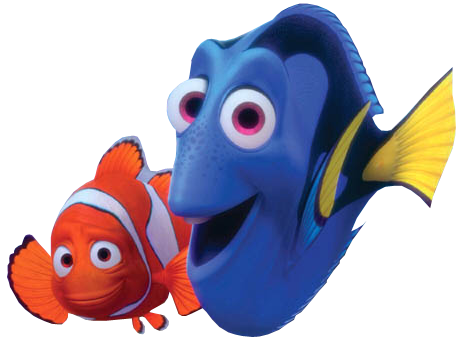
You may use these if you want.


First Step
Make a new document.

Second Step
Duplicate your render a bunch of times and move it so it covers most, if not all of the white.
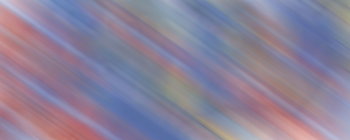
Next go to Filter>Blur>Motion Blur. Angle: -42 Distance: 112.
Opacity: 77%
Third Step
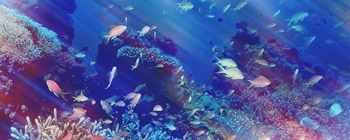
Put the coral stock thing in there.
Overlay 73%
Fourth Step
Next put the render on, put it close to the center but not directly.
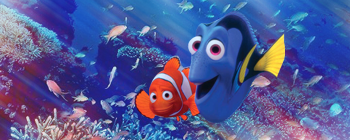
Fifth Step
Add Lighting and shadows. Make a new layer and use a 100px white soft brush and brush in the appropriate spot.
Motion blur that layer with the previous settings.
Change the layer style to screen.
Then make a new layer and use a 300px black soft brush and brush the opposite corners of the lighting. Put that layer under the lighting layer.
Put that layer on overlay.
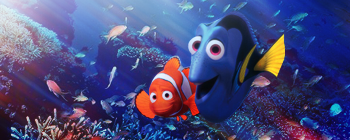
Sixth Step
Time for gradients, Brightness/Contrast, and curves.
Add a new gradient map (black and white) Put it on screen.
Add another (Purple and orange) Lighten 50%
Add another (Purple, green, and orange) Screen 50%
Add a brightness and contrast layer, Brightness: +5 Contrast: +7
Add a curves layer adjust the Red, Blue, and Green curves, not RBG, to your liking.
Add another and adjust the RBG to your liking.
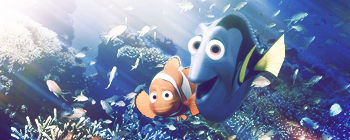
Seventh Step
Make a new layer, Image>apply image; Filter>blur>Gaussin Blur .5
Erase parts that look bad
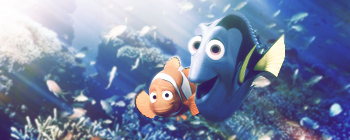
Eighth Step
Make a new layer, Image>apply image; Filter>Shapen>sharpen
Erase parts that dont look good
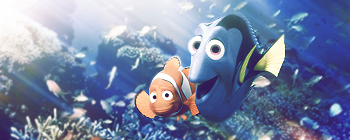
Ninth Step
Add your name, choose the main colors of the sig (orange+blue for me)
Use a plain font for the sub text and cursive for your name.
For my name i used a font called Dobkin
For the Subtext i used verdana
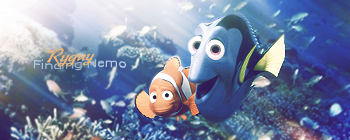
Tenth Step
Add a stock, i used bubbles, erase parts that look bad.
I also added my own bubbles with a brush.
Put the stock layer on overylay 30%
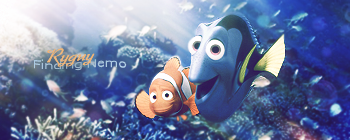
Eleventh Step
Choose like a 45px soft brush and use lighter colors and brush randomly throughout the sig.
Set all the layers to overlay and play with the opacity. If needed add some black too.
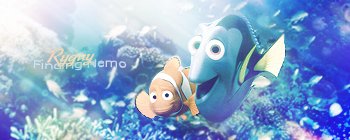
Twelfth Step
Add a border. Use the rectangle marque tool and make black cinematic borders like shown.
Please dont Rip this tut or any Images posted.
Resources
You may use these if you want.
First Step
Make a new document.
Second Step
Duplicate your render a bunch of times and move it so it covers most, if not all of the white.
Next go to Filter>Blur>Motion Blur. Angle: -42 Distance: 112.
Opacity: 77%
Third Step
Put the coral stock thing in there.
Overlay 73%
Fourth Step
Next put the render on, put it close to the center but not directly.
Fifth Step
Add Lighting and shadows. Make a new layer and use a 100px white soft brush and brush in the appropriate spot.
Motion blur that layer with the previous settings.
Change the layer style to screen.
Then make a new layer and use a 300px black soft brush and brush the opposite corners of the lighting. Put that layer under the lighting layer.
Put that layer on overlay.
Sixth Step
Time for gradients, Brightness/Contrast, and curves.
Add a new gradient map (black and white) Put it on screen.
Add another (Purple and orange) Lighten 50%
Add another (Purple, green, and orange) Screen 50%
Add a brightness and contrast layer, Brightness: +5 Contrast: +7
Add a curves layer adjust the Red, Blue, and Green curves, not RBG, to your liking.
Add another and adjust the RBG to your liking.
Seventh Step
Make a new layer, Image>apply image; Filter>blur>Gaussin Blur .5
Erase parts that look bad
Eighth Step
Make a new layer, Image>apply image; Filter>Shapen>sharpen
Erase parts that dont look good
Ninth Step
Add your name, choose the main colors of the sig (orange+blue for me)
Use a plain font for the sub text and cursive for your name.
For my name i used a font called Dobkin
For the Subtext i used verdana
Tenth Step
Add a stock, i used bubbles, erase parts that look bad.
I also added my own bubbles with a brush.
Put the stock layer on overylay 30%
Eleventh Step
Choose like a 45px soft brush and use lighter colors and brush randomly throughout the sig.
Set all the layers to overlay and play with the opacity. If needed add some black too.
Twelfth Step
Add a border. Use the rectangle marque tool and make black cinematic borders like shown.
Please dont Rip this tut or any Images posted.


 Originally Posted by Sjoerd


