👍 How To User One Button For [OFF] & [ON] - C#

Posts 1–15 of 23 · Page 1 of 2
How To Use One Button For [OFF] & [ON] - C#
Seeing that nearly every one posting in the release section is using two buttons, one for ON the other for OFF... Well time you learn how to use one button...

Here is the GUI

Before
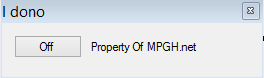
After


Hmm you must be thinking this must be very easy!
Correct!

Here is how you do it...
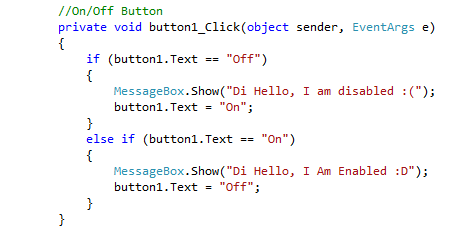

What would happen if you changed the "else if" to "if"...
Well you would get both MessageBoxe's showing from just clicking once
Some of you may be saying.. hey I know another way!
Good on ya, then use it!
This is a simple way and what I use

I hope to see in all of the people that needed this to see it used in your next release


---
Q: Why is it an image?
A: Yuno type yo self? y u wona copy n paste? yuno learn? reading will help you understand it, that's why you copy crap from the board at school
But....isn't this common sense? :O
Quote Originally Posted by Kenshin13 View Post
But....isn't this common sense? :O
Then why is most peoples releases using two buttons
Quote Originally Posted by NadeHouse View Post
Then why is most peoples releases using two buttons
...Guess we just got brains then.
Quote Originally Posted by Kenshin13 View Post
...Guess we just got brains then.
I suppose in that case :P but seems you are on hallucinogens he
Quote Originally Posted by Skinksteek View Post
Thanks.
Glad it helped one person

Check out the tutorial on the login screen if interested
Quote Originally Posted by NadeHouse View Post
Glad it helped one person

Check out the tutorial on the login screen if interested
Ofcourse, where is it?
Guess i'll throw in my knowledge on this subject too then
Code:
bool Fun = false;
//it's false since we dont want the fun to start on startup of our tool
Code:
private void button1_Click(object sender, EventArgs e)
        {
            if (Fun)
            {
                Fun = false;
            }
            else
                Fun = true;
        }
//very simple, upon clicking the button, the programm will check the state of Fun, if it's false, it will set it to true, and vice versa
Code:
private void timer1_Tick(object sender, EventArgs e)
        {
            if (Fun)
            {
                //do your thing when it's active
                Button1.Text = "On";
            }
            else
               //do your thing when its off
               Button1.Text = "Off";
        }
I didnt bother to make a picture, cus if ppl wanna leech , they wont learn anything, so theyll have to ask for help later, and i wont help them then, so they only hurt themselves.
This will keep doing what you told it to do, and wont stop untill u click the button to make it off, to prevent it, just make the 2nd part look something like this :
Code:
private void button1_Click(object sender, EventArgs e)
        {
            if (Fun)
            {
                //do your thing when you wanna turn it off
                Fun = false;
                Button1.Text = "Off";
            }
            else
                //do your thing when you wanna turn it on
                 Button1.Text = "On";
                Fun = true;
        }
^^^^Didnt bother to check it, but should work ... I always use timer
Quote Originally Posted by Horror View Post
Guess i'll throw in my knowledge on this subject too then
Code:
bool Fun = false;
//it's false since we dont want the fun to start on startup of our tool
Code:
private void button1_Click(object sender, EventArgs e)
        {
            if (Fun)
            {
                Fun = false;
            }
            else
                Fun = true;
        }
//very simple, upon clicking the button, the programm will check the state of Fun, if it's false, it will set it to true, and vice versa
Code:
private void timer1_Tick(object sender, EventArgs e)
        {
            if (Fun)
            {
                //do your thing when it's active
                Button1.Text = "On";
            }
            else
               //do your thing when its off
               Button1.Text = "Off";
        }
I didnt bother to make a picture, cus if ppl wanna leech , they wont learn anything, so theyll have to ask for help later, and i wont help them then, so they only hurt themselves.
This will keep doing what you told it to do, and wont stop untill u click the button to make it off, to prevent it, just make the 2nd part look something like this :
Code:
private void button1_Click(object sender, EventArgs e)
        {
            if (Fun)
            {
                //do your thing when you wanna turn it off
                Fun = false;
                Button1.Text = "Off";
            }
            else
                //do your thing when you wanna turn it on
                 Button1.Text = "On";
                Fun = true;
        }
^^^^Didnt bother to check it, but should work ... I always use timer
Easier way:

Code:
private void button1_Click(object sender, EventArgs e)
        {
            Fun = !Fun; //Nice little toggle
            if (Fun) Button1.Text = "Off";
            else Button1.Text = "On";
        }
Well as I said many of you would know easier ways, i do these ways because it's easier for my brain to understand, I'm not that advanced enough in my opinion to start taking these short cuts xD

I draw chart flows in paint and then code from it
Quote Originally Posted by NadeHouse View Post
Well as I said many of you would know easier ways, i do these ways because it's easier for my brain to understand, I'm not that advanced enough in my opinion to start taking these short cuts xD

I draw chart flows in paint and then code from it
First time I ever heard of coding from flow charts...and in paint... :3
Quote Originally Posted by Kenshin13 View Post
First time I ever heard of coding from flow charts...and in paint... :3
Well when things get more complex and you are having trouble processing it in your mind, draw it, It helps
---------Bump---------
Quote Originally Posted by NadeHouse View Post
---------Bump---------
Uhh why?......
Posts 1–15 of 23 · Page 1 of 2

Post a Reply

Similar Threads

Talk with us